
Search HubSpot Contacts to Start a Conversation or Group Message
If your account is connected to HubSpot, you can search your HubSpot contacts directly from Project Blue and start a conversation without typing a number or sending a first message.
Start a conversation from HubSpot
Click the + button at the top of your Conversations list.
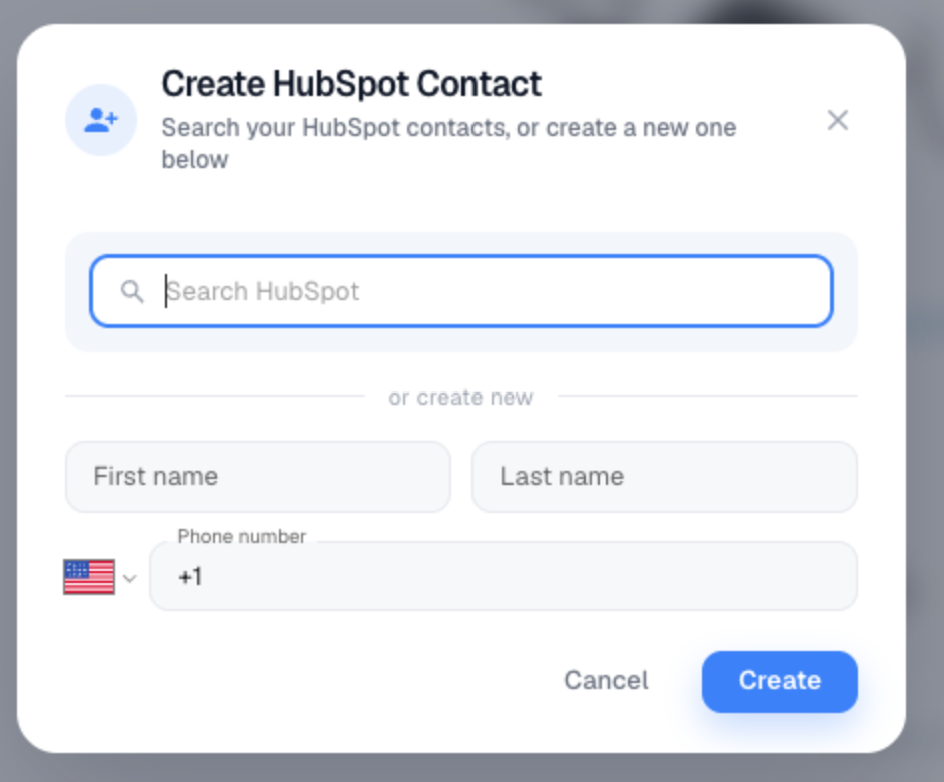
In the Create HubSpot Contact window, type in the search box. You can search by name, phone number or email.
Select the contact from the results. Their conversation opens right away, and you don't need to send a first message.
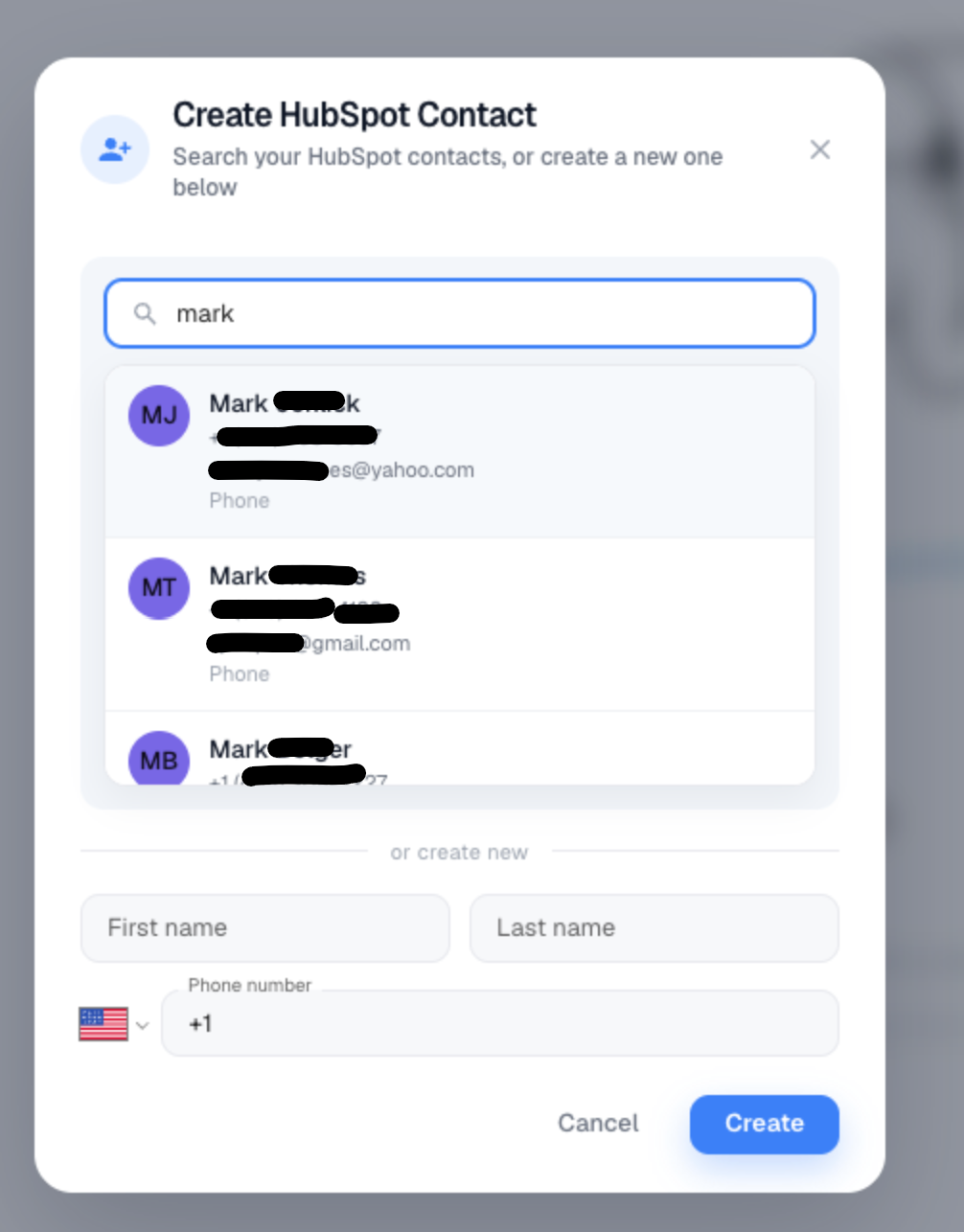
Each result shows the contact's name, phone number, email and which phone field matched. Contacts opened this way show the HubSpot icon next to their name in your conversation list.
If the person isn't in HubSpot yet, use the or create new section in the same window. Enter their first name, last name and phone number, then click Create.
Add HubSpot contacts to a group message
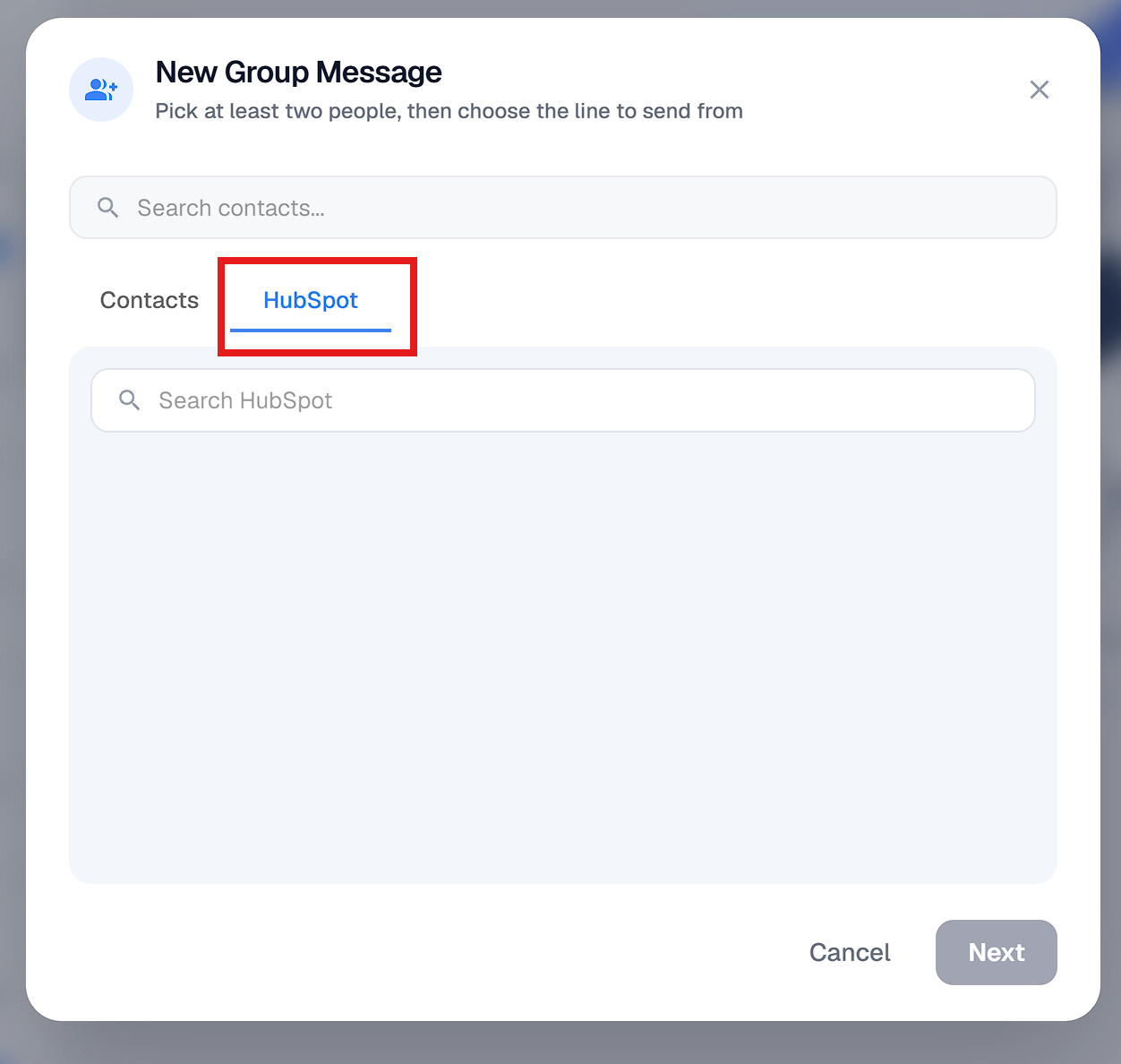
When you start a New Group Message, open the HubSpot tab to search your HubSpot contacts and add them as group members.
How search works
Search looks at the phone fields selected for your account, so a contact can match on any of those fields.
If HubSpot has duplicate records for the same person, each record is shown separately so you can choose the right one.
Where it works
HubSpot contact search is available in the Project Blue web app, the mobile app and the Chrome extension.
Can't find a contact? Make sure they have a phone number saved in one of the phone fields selected for your account, and check whether they appear twice under different records.