
Your Launch Checklist
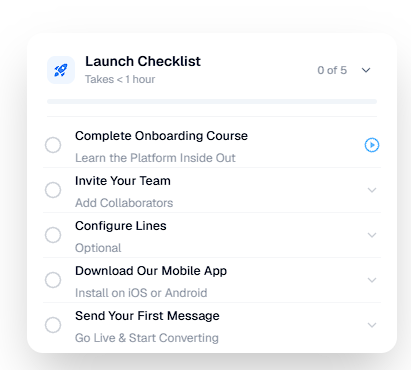
When you sign in to Project Blue, you'll see a Launch Checklist card. It takes under an hour and walks you through the steps that get you sending messages. The card shows how many steps you've finished, for example "2 of 5", and a progress bar.
The steps
Complete Onboarding Course: learn the platform inside out. Click the play button to start the course. Passing with 80% or more completes the step.
Invite Your Team: add your teammates to the account.
Configure Lines (optional): set up your lines.
Download Our Mobile App: install it on iOS or Android, then click Mark as completed.
Send Your First Message: go live and start converting. This step ticks itself after your first sent message, the next time you load the page.
Account owners and admins see all five steps. Invited teammates with the User role see three: the course, the mobile app and their first message. They click Mark as completed on the mobile app and first message steps.
Who sees it
New account owners, and teammates who accept an invitation, see the checklist. Each person has their own progress, so each teammate should download the mobile app and finish the course.
Collapse, reopen or dismiss it
Use the arrow on the card to collapse it. Project Blue remembers your choice.
To open it again, click Launch Checklist in the left sidebar.
When every step is done, click Dismiss to hide the card for good.
If the course step doesn't tick after you pass, contact Project Blue support.