
Project Blue API, Webhooks & MCP
This page is your jumping-off point for working with Project Blue programmatically. Whether you're connected through a CRM integration or running on API only, everything you need lives in the links below.
API Documentation
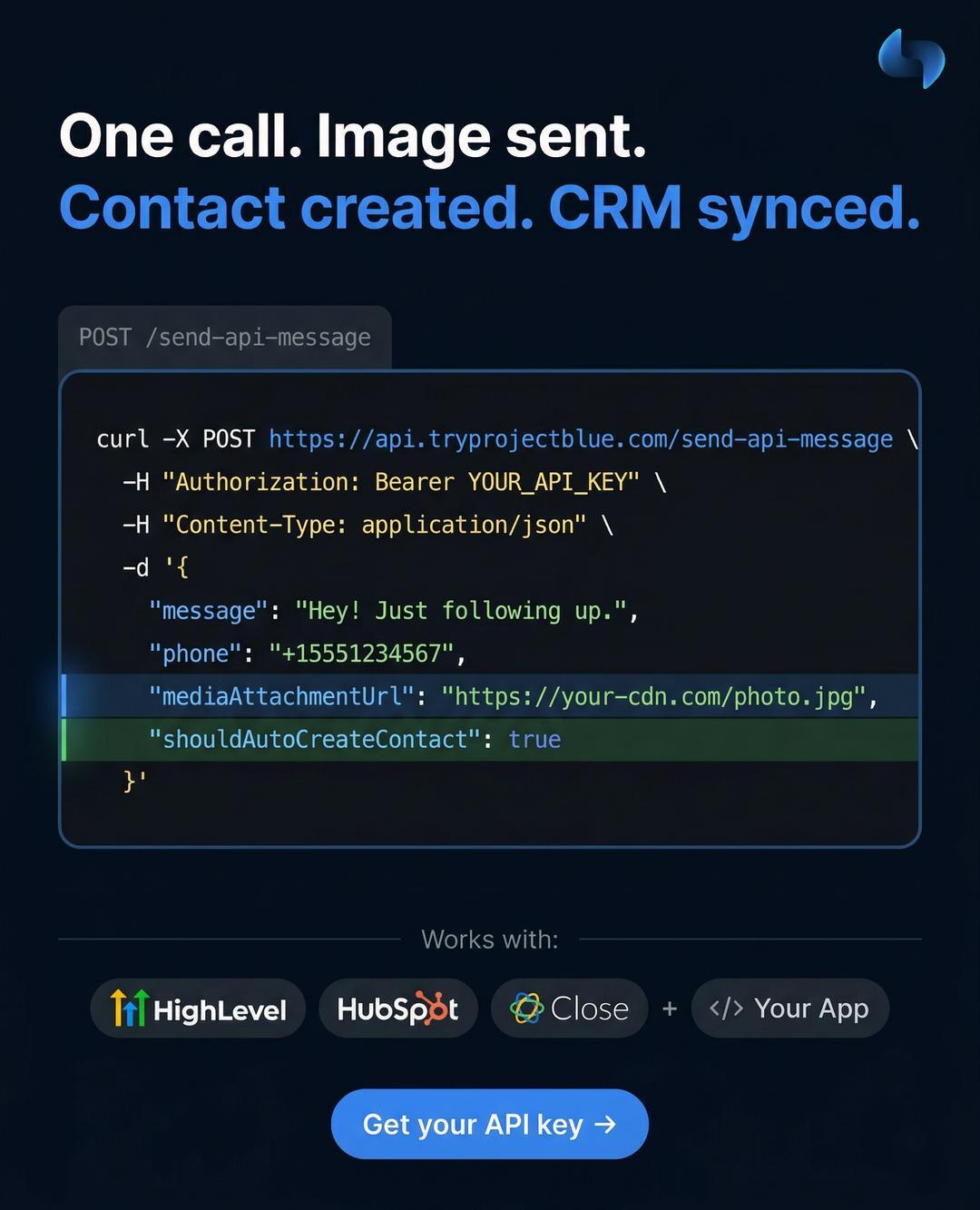
Our full API reference is available at api.tryprojectblue.com. Head there for endpoints, request/response shapes, and examples.
Generating an API Key
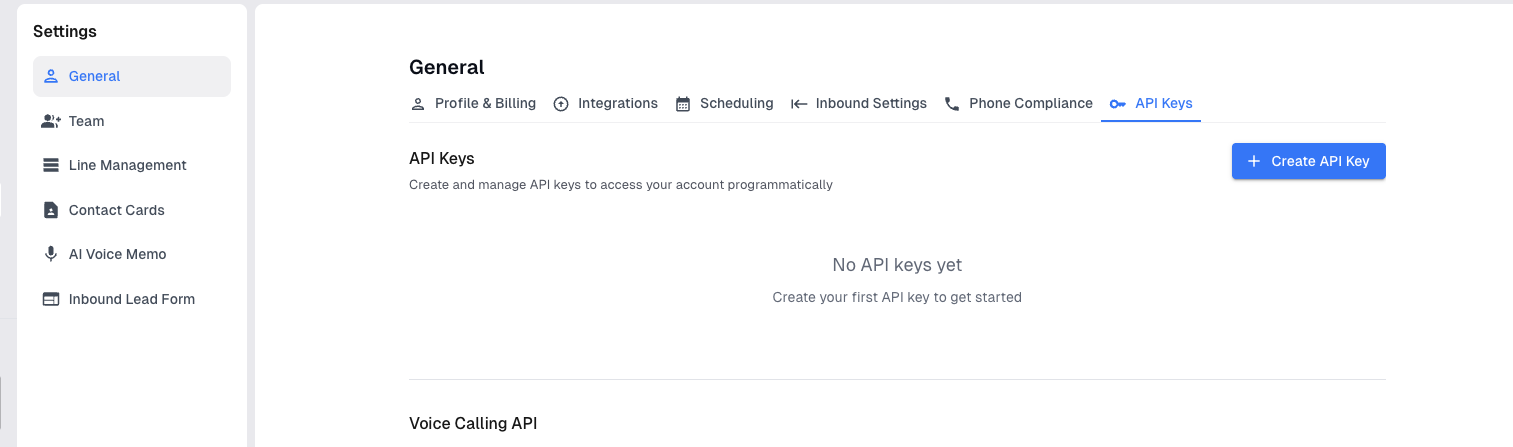
If you're connected with a CRM integration, you can interact with our API as well. To generate an API key:
Open your Project Blue portal
Go to Settings › General › API Keys
Generate a new key
Webhooks
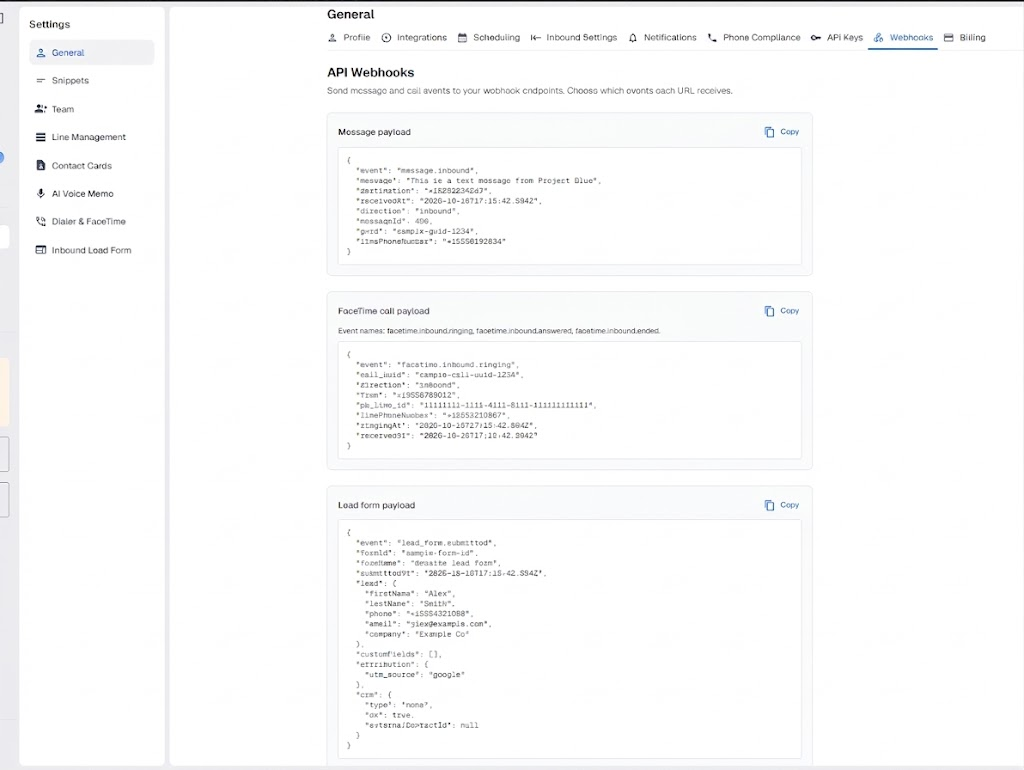
Webhooks are available to all Project Blue users, regardless of your integration type. To receive real-time notifications, go to Settings › General › Webhooks and click Add Webhook. Project Blue will POST event data to your URL for the events you choose:
Inbound messages and Outbound messages (on by default)
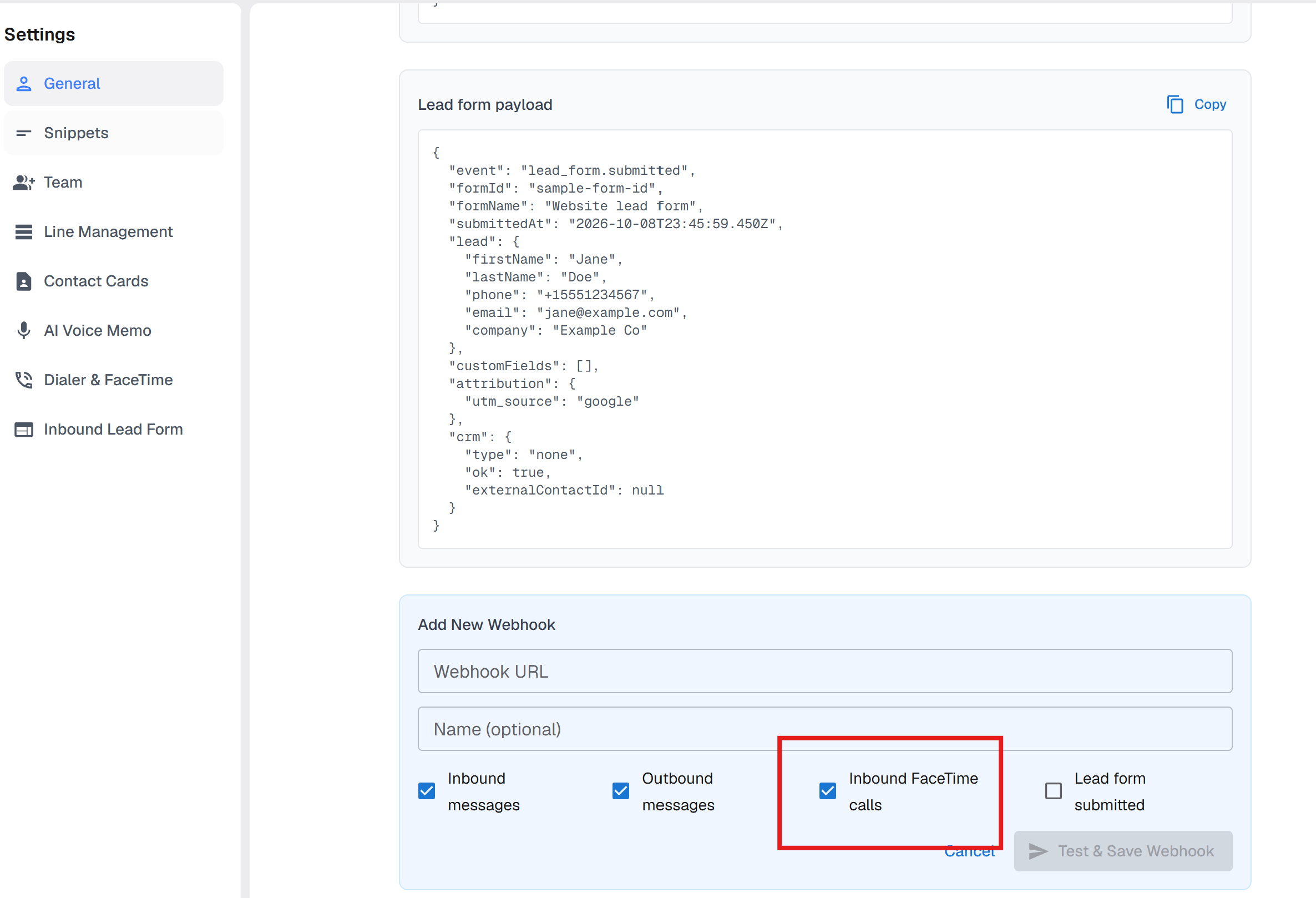
Inbound FaceTime calls (off by default)
Lead form submitted: get a webhook when someone submits your inbound lead form (off by default)
More you can do through the API
Besides sending and receiving messages, the API and MCP support:
Typing indicators: show the contact that you're typing before a message arrives. See Send typing indicator.
Reactions: react to a contact's iMessage with a tapback. See Send reaction.
Message effects: send an iMessage with a bubble or screen effect, like Slam or Confetti. See Effects.
External contacts: if you use the API without a connected CRM, you can create, list and update contacts in Project Blue. Custom fields you send are shown with the contact's details in the Project Blue web app.
Dialer call logs: pull your Dialer call history, inbound and outbound, through the API or MCP. Use the
directionfilter to see one or the other.FaceTime Audio calls: place FaceTime Audio calls through the API or MCP. Inbound calls are covered below.
Typing indicators, reactions and effects work in iMessage conversations. Reactions work on messages you've received.
Inbound FaceTime calls
You can answer inbound FaceTime Audio calls inside your own app or CRM through the API, not only in the Project Blue mobile and web apps. Your app gets a webhook when a call rings, then answers or declines it through the API. The audio runs through the Agora SDK, the same way it does for outbound FaceTime calls.
Before you start: your app needs the Agora SDK to handle the audio. Project Blue returns the Agora credentials when you answer a call.
Setup
In your Project Blue portal, go to Settings › General › Webhooks › Add Webhook and tick Inbound FaceTime calls. This checkbox is off by default, so your existing message webhooks don't change.
Handle the ringing webhook: show a ring screen in your app, then call the answer or decline endpoint.
When you answer, join Agora with the credentials the API returns.
Webhook events
facetime.inbound.ringing: a call is ringing on one of your lines. Includes the call_uuid, the caller's number and the line.
facetime.inbound.answered: someone picked up, whether in your own app (through the API), the Project Blue mobile app or the web app. Use it to dismiss your ring screen.
facetime.inbound.ended: the call ended, was declined, wasn't answered or went to voicemail.
Endpoints
POST /answer-facetime-call-api: answers a ringing call and returns Agora credentials.
POST /decline-facetime-call-api: declines a ringing call.
GET /get-facetime-call-status-api: returns the call status, including direction and ringing_at, so you can poll inbound calls.
POST /end-facetime-call-api: hangs up an inbound call you answered.
Good to know:
Answer or decline a call while it's ringing.
If your endpoint misses the ringing event, poll the status endpoint to catch the call.
The full walkthrough, with server and browser code samples, is in the API docs: Inbound FaceTime.
Project Blue MCP
We also publish the Project Blue MCP, which lets you interact with our system end-to-end through MCP-compatible clients like Claude Code, Cursor, and others. You can find connection details in the API docs.
If you have questions or run into anything unexpected, reach out to support and we'll help you get connected.