
How to Add HighLevel Users in Project Blue
Connect your HighLevel team to Project Blue in a few clicks. You can pull your HighLevel users into the list, invite them to your Project Blue team, or map them to a line under Line Management.
Pull in your HighLevel users
Account owners and Admins can do this from the Team page.
Log in to the Project Blue dashboard.
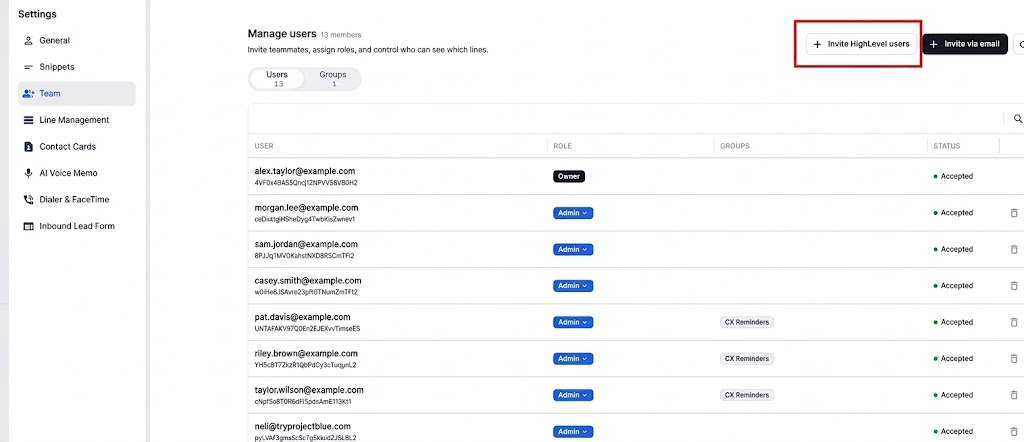
Click Settings, then Team.
Click Invite HighLevel users.
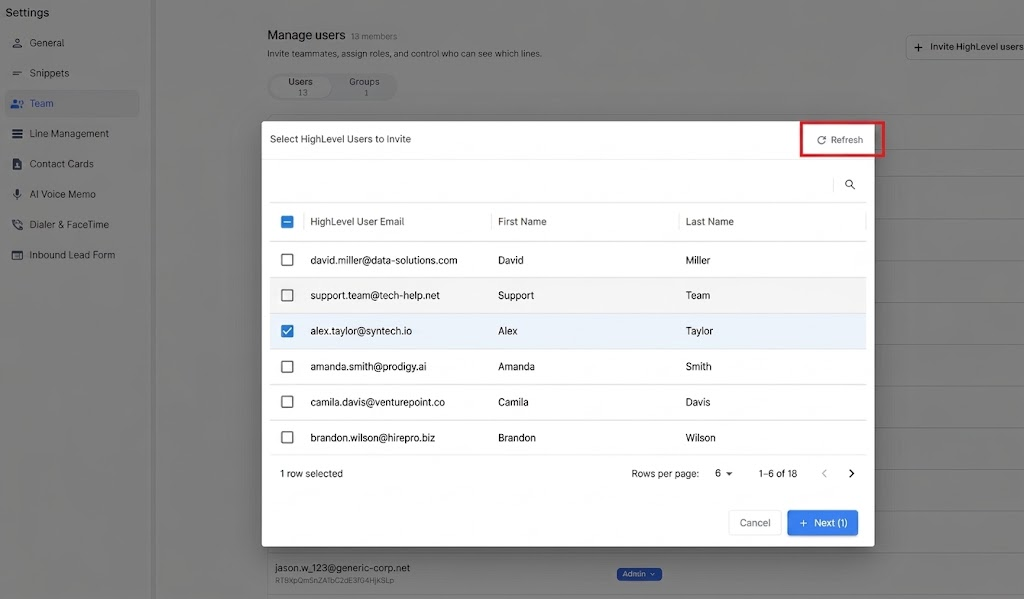
Click Refresh to load the latest users from your connected HighLevel sub-accounts.
Search by name or email to find the person. The list shows 6 people per page.
Refresh pulls in everyone from every sub-account you've connected, including sub-accounts you've added recently.
Invite them to your team
In the Invite HighLevel users window, select the people you want to add.
Choose a role for each person: Admin, User or User, all lines. The default is User.
Click Next, then assign lines now or click Skip or Submit.
Each person gets an email titled "You have been invited to Project Blue" with a link to set their password.
Invite someone by email instead
You can invite anyone directly, whether or not they appear in the HighLevel list.
Go to Settings → Team and click Invite via email.
Enter one or more email addresses in Invite Email and choose a Permission Level for each person.
Click Next, then assign lines or click Skip or Submit.
The email you invite doesn't need to match the person's HighLevel email.
Map a HighLevel user to a line (no invite needed)
To link a line to a HighLevel staff member without inviting them to Project Blue:
After clicking Refresh as shown above, go to Settings → Line Management.
Find the line and click Assign in the Assigned Highlevel User column.
Select the HighLevel user and save.
Good to know
Each person needs a name and an email on their HighLevel profile to appear in the list.
People who are already on your team or have a pending invitation don't show in the list.
To resend an invitation, invite the same email address again.
There's no seat limit on the number of teammates.
Questions? Reach out to support@tryprojectblue.com and we'll help you get set up.