
How to Make Calls Directly from Your CRM Using the Project Blue Dialer
Overview
The Project Blue Dialer lets you call contacts straight from your CRM — no switching tabs, no copy-pasting numbers. It works through the Project Blue Chrome Extension, which adds call and message buttons right next to your contacts' phone numbers so you can reach people in just one click.
How It Works
Once the Chrome Extension is installed and you're logged in, Project Blue automatically adds a call button and a message button next to phone numbers in your CRM. Clicking the call icon starts the call through your Project Blue line right away.
Here's how to get set up:
- Install the extension — Add the Project Blue Chrome Extension from the Chrome Web Store https://chromewebstore.google.com/detail/project-blue/bkhhglfciljiplgciljdnbmeeggefafa?pli=1.
- Allow permissions — When prompted, grant the extension the permissions it asks for (including microphone access so audio works on calls).
- Log in — Sign into your Project Blue account within the extension.
- Open your CRM — Navigate to any contact with a phone number. You'll see the Project Blue call and message icons appear next to it.
- Click the call icon — That's it! Your call will connect through your Project Blue line. You can also watch a quick walkthrough:
https://www.loom.com/share/118cf94d4c0f42f5a8447336f1fb980a.
Key Things to Know
- Microphone permission is required. If your browser hasn't allowed microphone access, calls won't connect properly. You can check this in your browser settings or in the permissions prompt when you first install the extension.
- You need to be logged in to the extension. If the icons aren't showing up next to phone numbers, check that you're logged into Project Blue inside the extension.
- Make sure your extension is up to date. An outdated version can cause the dialer buttons to not appear. You can force an update by going to chrome://extensions in your browser and clicking the refresh icon.
- This works in your CRM. Once the extension is installed, just navigate to your CRM as usual — the buttons appear automatically on contacts.
Subscribe to the Dialer
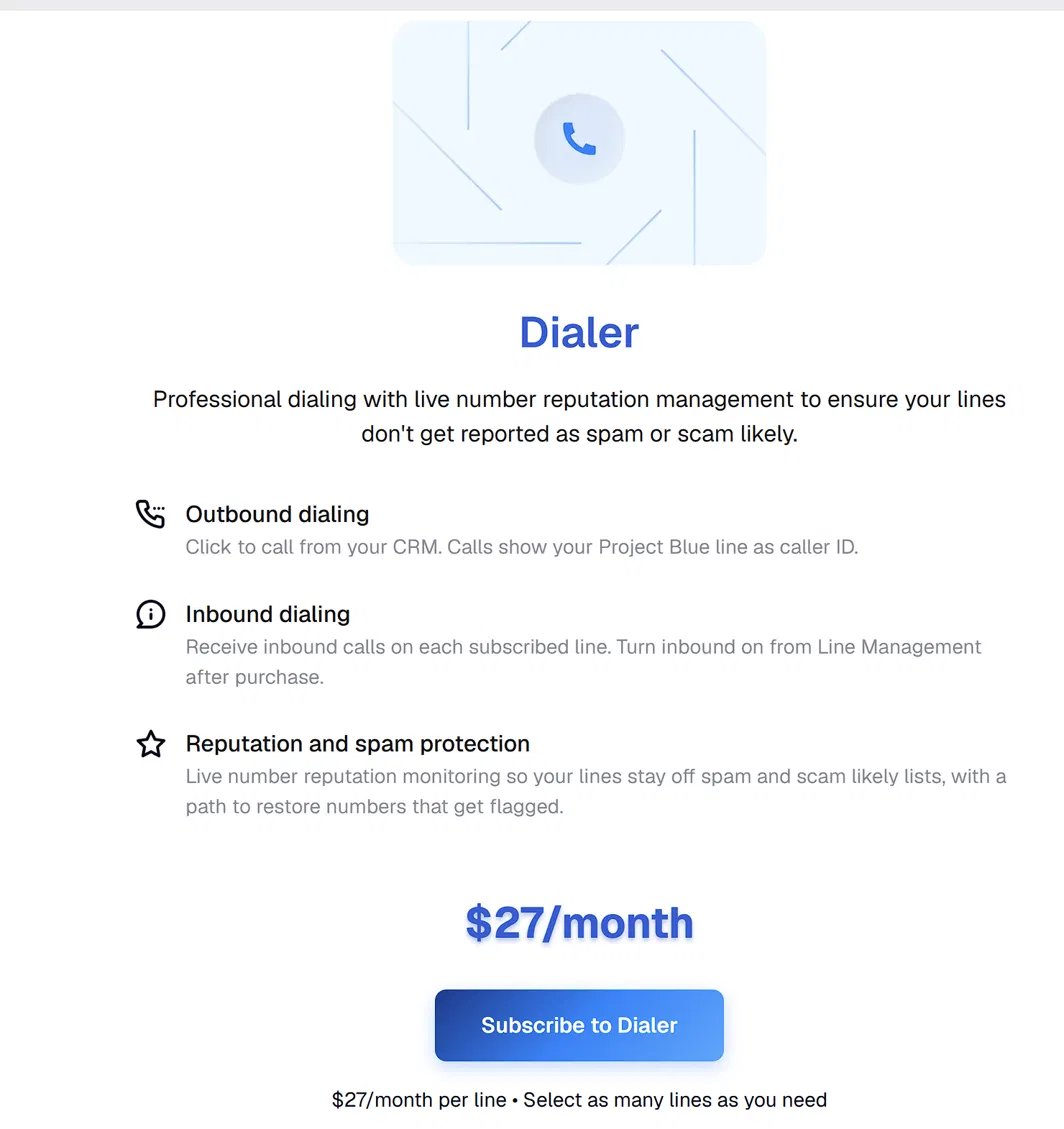
The Dialer is a paid add-on that you turn on for each line you want to call from.
In the Project Blue app, open Dialer in the left menu.
Click Subscribe to Dialer.
In Add Dialer Lines, tick the lines you want, check the total, then click Add lines.
The Dialer costs $27 per line per month. Select as many lines as you need, and you can add more lines at any time.
The Dialer also lets you receive calls on each subscribed line. After you subscribe, turn inbound on for the line from Line Management. See How to Set Up Inbound Dialing (Dialer & FaceTime).
Call logs in GoHighLevel
When you place an outbound call from the Dialer in GoHighLevel, the call is logged in the contact's conversation as an Outbound Call, with a player so you can listen to the recording.
Use the dialpad
The Dialer has a keypad, so you can type a number to call instead of clicking a number in your CRM.
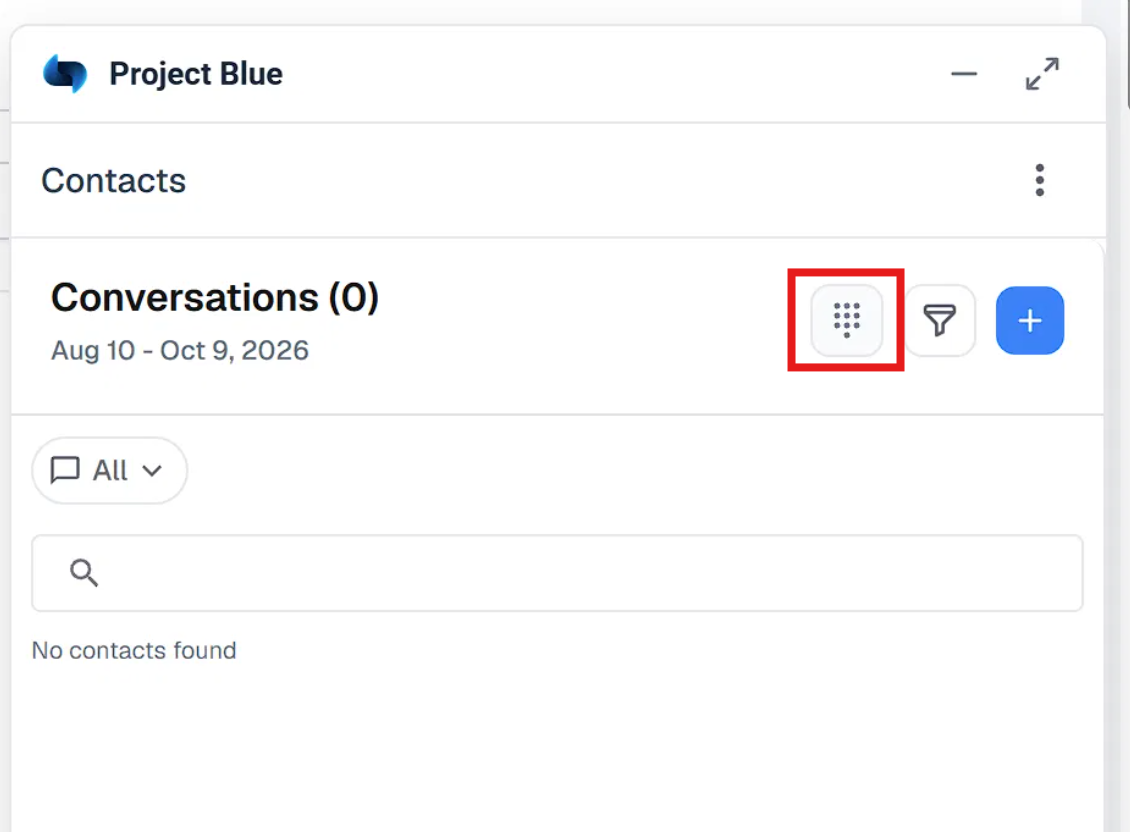
In the Project Blue panel in your CRM, click the keypad icon next to the filter icon at the top of the Conversations list.
In the Keypad window, type the number you want to call.
Click the green call button.
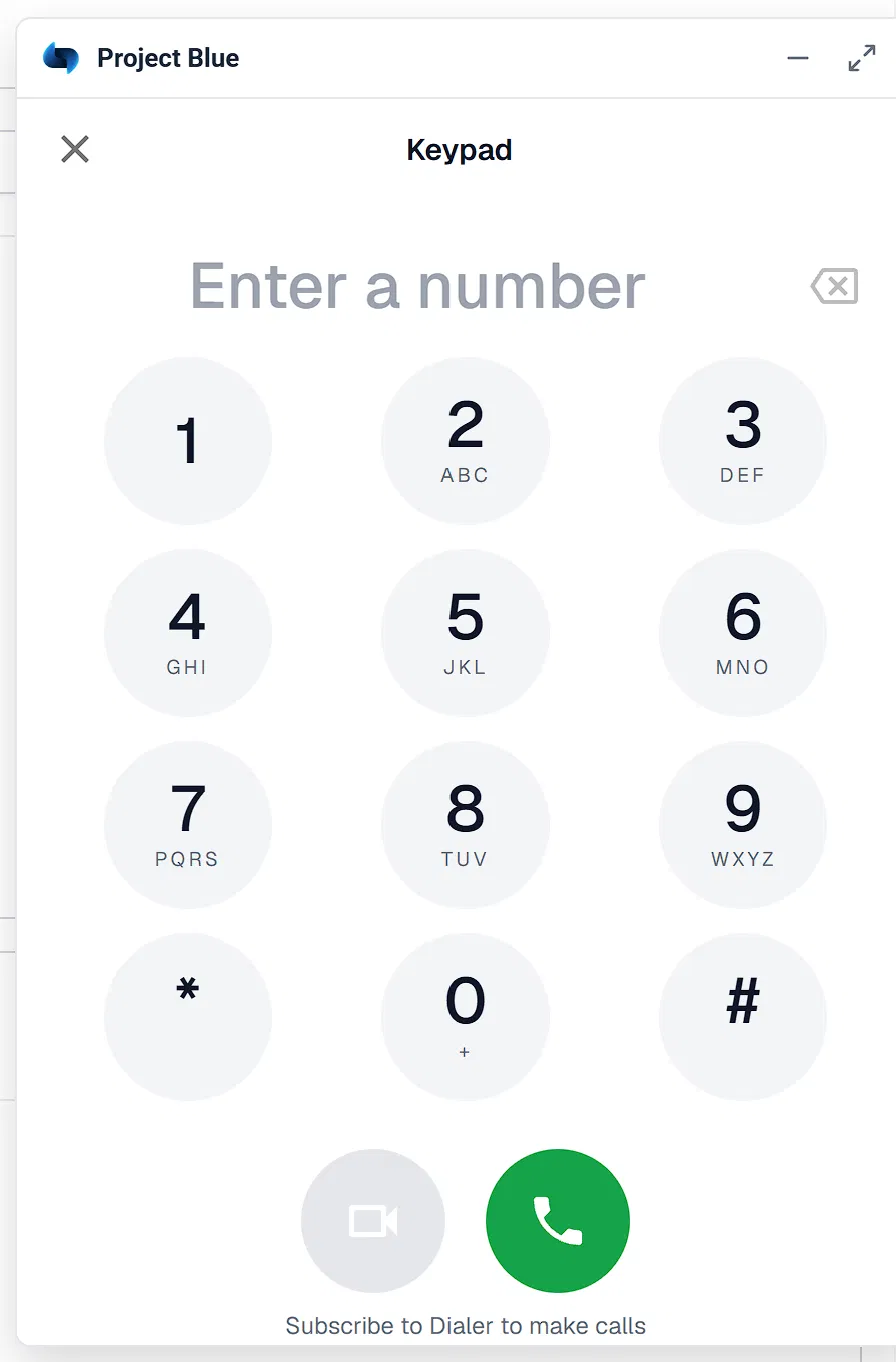
You need a Dialer subscription to make calls. Without one, the Keypad shows "Subscribe to Dialer to make calls".
During a call
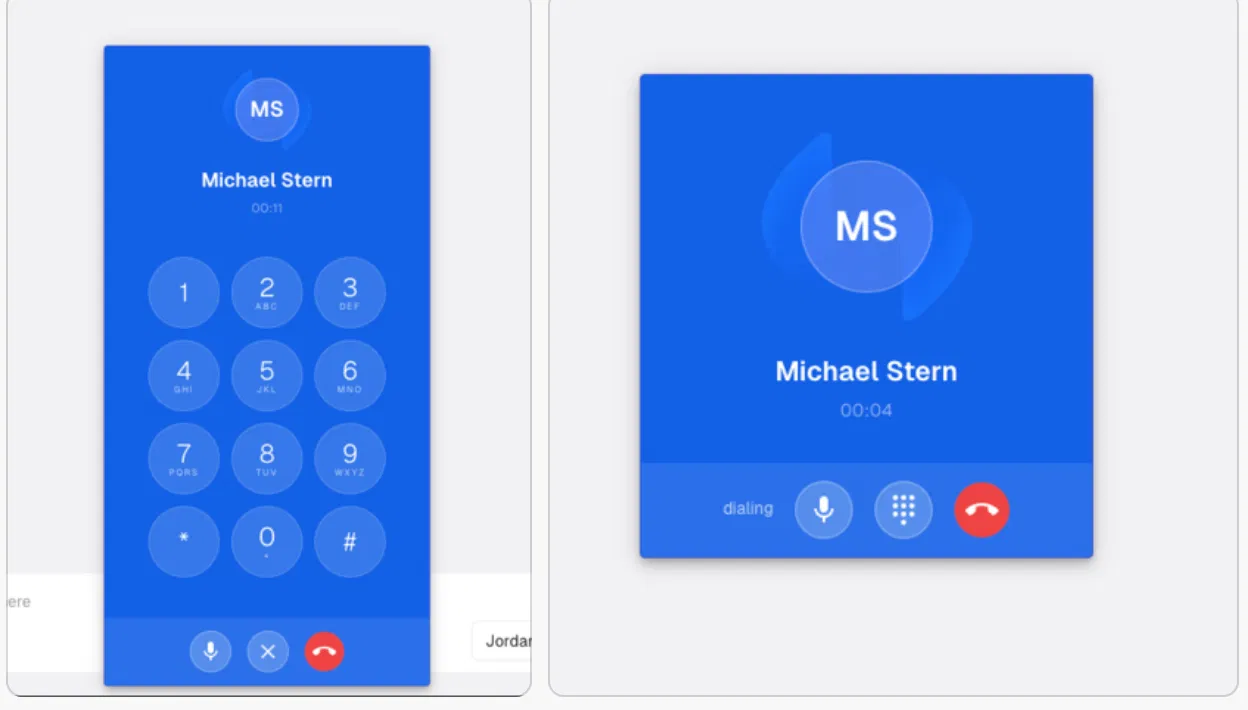
The call window shows the contact's name and a timer. It has buttons to mute your microphone, open a keypad, and hang up.
Daily calling minutes
Dialer subscriptions started on or after September 1, 2026 include a daily allowance of calling minutes for each dialer line:
180 minutes per line per day are included.
Minutes past 180 are billed at $0.10 per minute, added to your Project Blue subscription automatically. Calls keep working.
There's a daily limit, normally 540 minutes per line. Once a line reaches it, new outbound calls from that line are blocked until the next reset. A call that's already in progress isn't cut off.
Minutes reset every day at midnight UTC (8 PM Eastern during daylight saving time, 7 PM Eastern otherwise).
FaceTime Audio calls don't use dialer minutes. Dialer subscriptions started before September 1, 2026 have no daily limit and no per-minute charges.
Need a higher daily limit? Contact Project Blue support and we can raise it for you. The new limit applies to all the dialer lines on your account.
Related Features
The Chrome Extension also lets you send voice memos directly from your CRM, not just calls — look for the message icon right next to the call button.