
How to Install the Project Blue App in Your CRM
Connecting Project Blue to your CRM lets you send and receive iMessages and SMS directly through the platform you already use. Project Blue supports GoHighLevel, HubSpot, Close, and any external CRM via API. Follow the steps below to get connected.
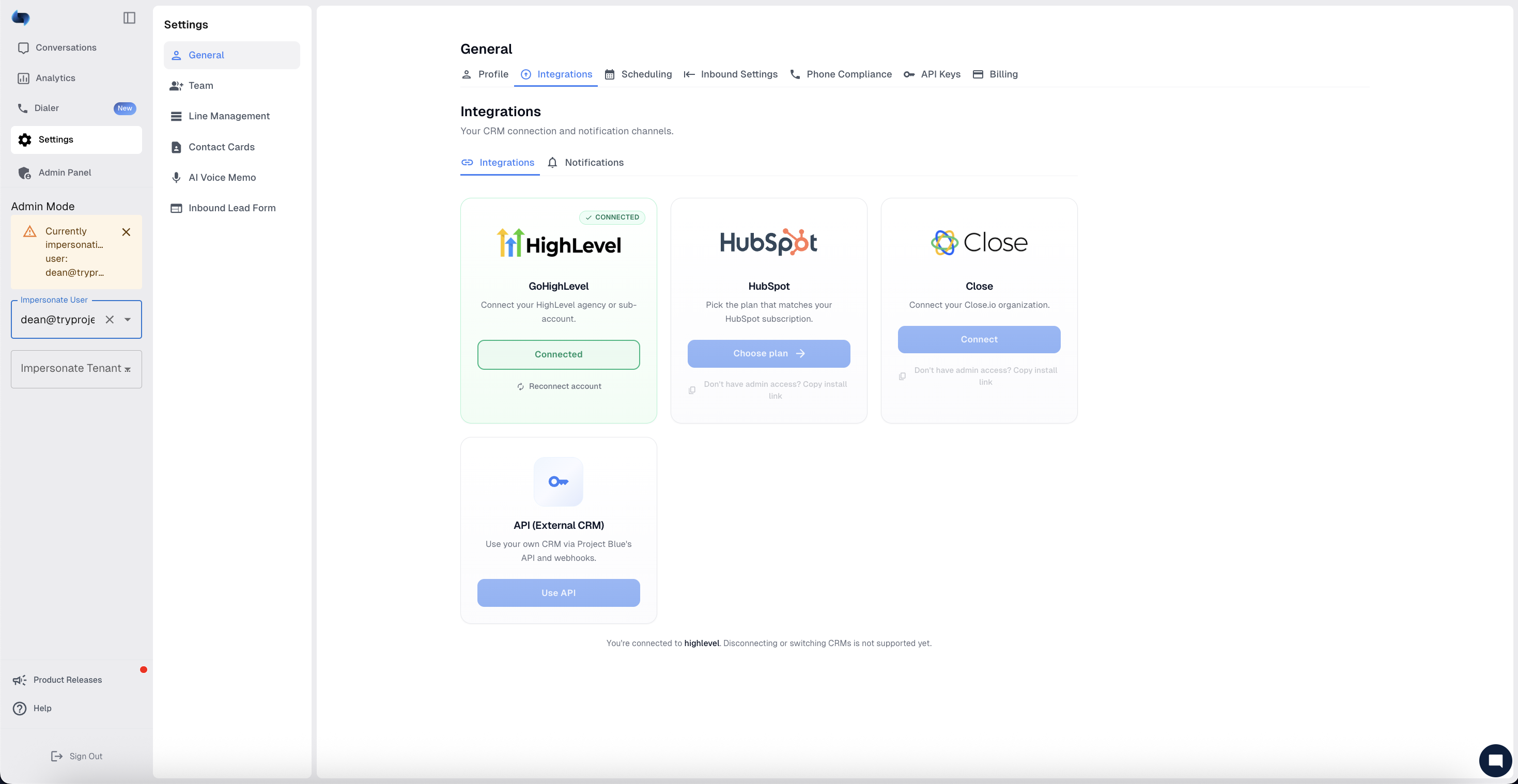
Step 1: Log in to the Project Blue Web App
Go to app.tryprojectblue.com and log in with your Project Blue credentials.
Step 2: Go to Settings
Click on Settings in the left-hand sidebar.
Step 3: Open General Settings
Click on General, then select the Integrations tab at the top of the page.
Step 4: Choose Your CRM
In the Integrations section, you'll see the available options:
GoHighLevel — Connect your HighLevel agency or sub-account.
HubSpot — Pick the plan that matches your HubSpot subscription.
Close — Connect your Close.io organization.
API (External CRM) — Use your own CRM through Project Blue's API and webhooks. Here you'll find your API key to connect.
Step 5: Connect
Click the Connect button under the CRM you want to integrate, then follow the prompts to authorize the connection.
For the External CRM option, copy your API key and use it to connect Project Blue with your own system via API and webhooks.
You're All Set!
That's it — once connected, Project Blue is integrated with your CRM and ready to use.
Note: Disconnecting or switching CRMs is not supported yet, so make sure you connect the correct CRM for your account.
If you run into any issues during setup, reach out to our support team at support@tryprojectblue.com and we'll be happy to help.