
Get Slack Alerts for Inbound Messages
Get a message in Slack whenever a contact texts one of your lines, including group chats, so your team sees new replies without watching the inbox. Slack alerts are available on paid accounts.
Set it up
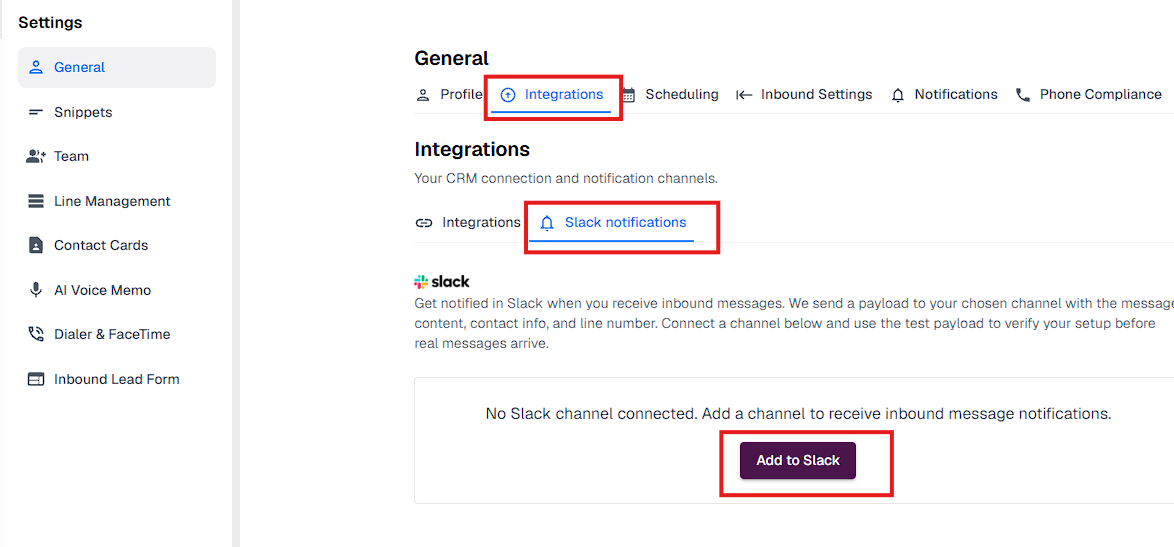
Go to Settings > General > Integrations and open the Slack notifications tab.
Click Add to Slack and sign in to your Slack workspace.
On Slack's screen, pick the channel that should receive the alerts.
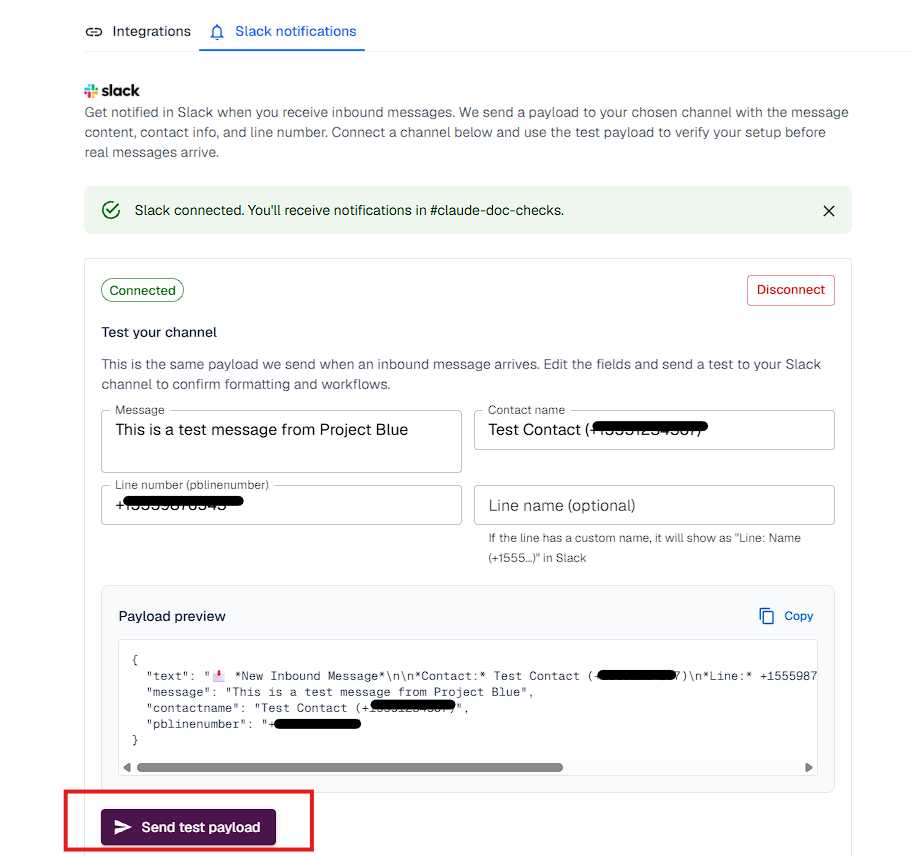
Back in Project Blue, you'll see Slack connected. Click Send test payload to check that alerts arrive.
What an alert shows
Each alert is titled New Inbound Message and shows the contact (name and number), your line (name and number) and the message text.
Change the channel
To send alerts to a different channel, click Disconnect, then click Add to Slack again and pick the new channel.
Good to know
Alerts go to one Slack channel for each account.
To route alerts by line, use webhooks. Every inbound webhook event includes the line number, so Zapier or Make can send each line's alerts to a different channel. See Project Blue API, Webhooks & MCP.
Related articles
Getting Started with the Project Blue Mobile App (push notifications)