
Using Analytics in Project Blue
The Analytics page shows how your team is using Project Blue: messages, the new contacts you're reaching, and calls made with the Dialer.
Open Analytics
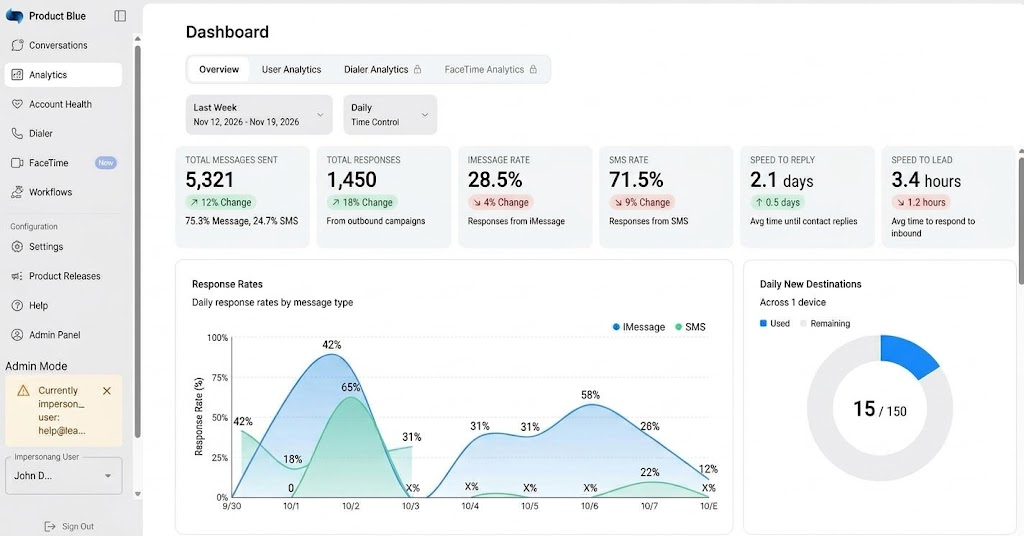
In the Project Blue web app, click Analytics in the left menu. The page is called Dashboard. It's available to account owners and admins.
Messaging
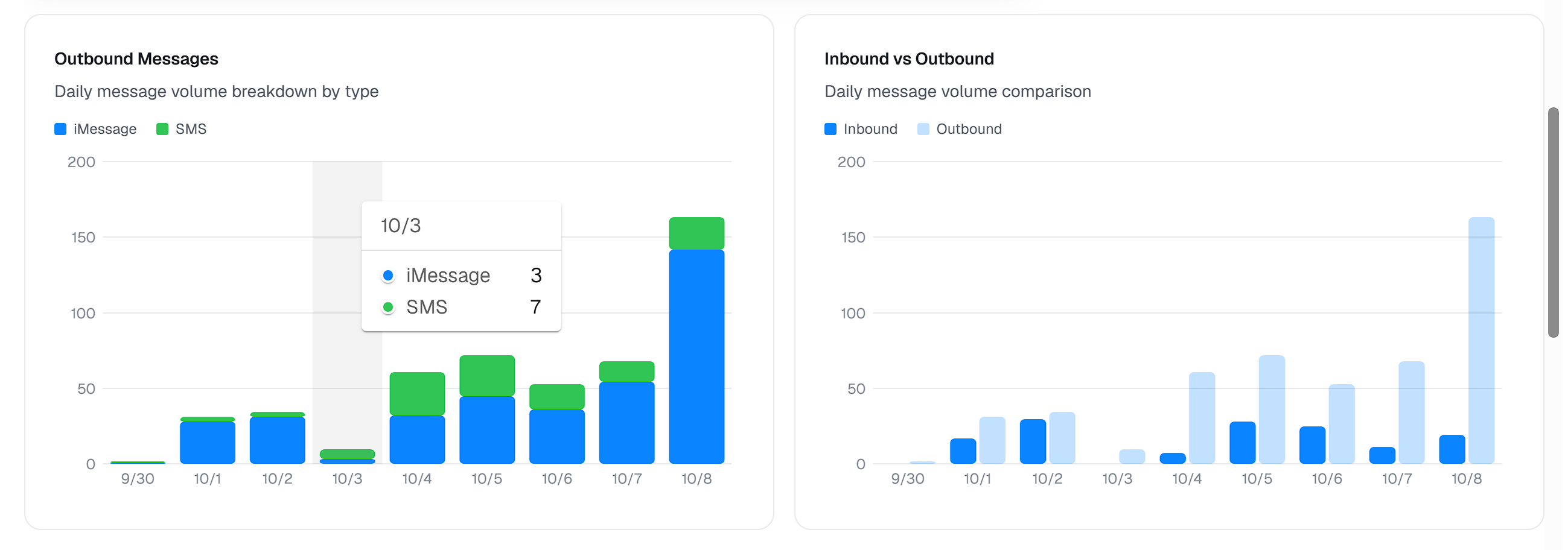
The Overview tab shows tiles for Total Messages Sent, Total Responses, iMessage and SMS response rates, Speed to Reply and Speed to Lead, each with the change from the previous period, plus charts.
Pick a date range: Today, Last Week (the default), Last Month, Last 3 Months or Custom Range. Switch the charts between Daily, Weekly and Monthly.
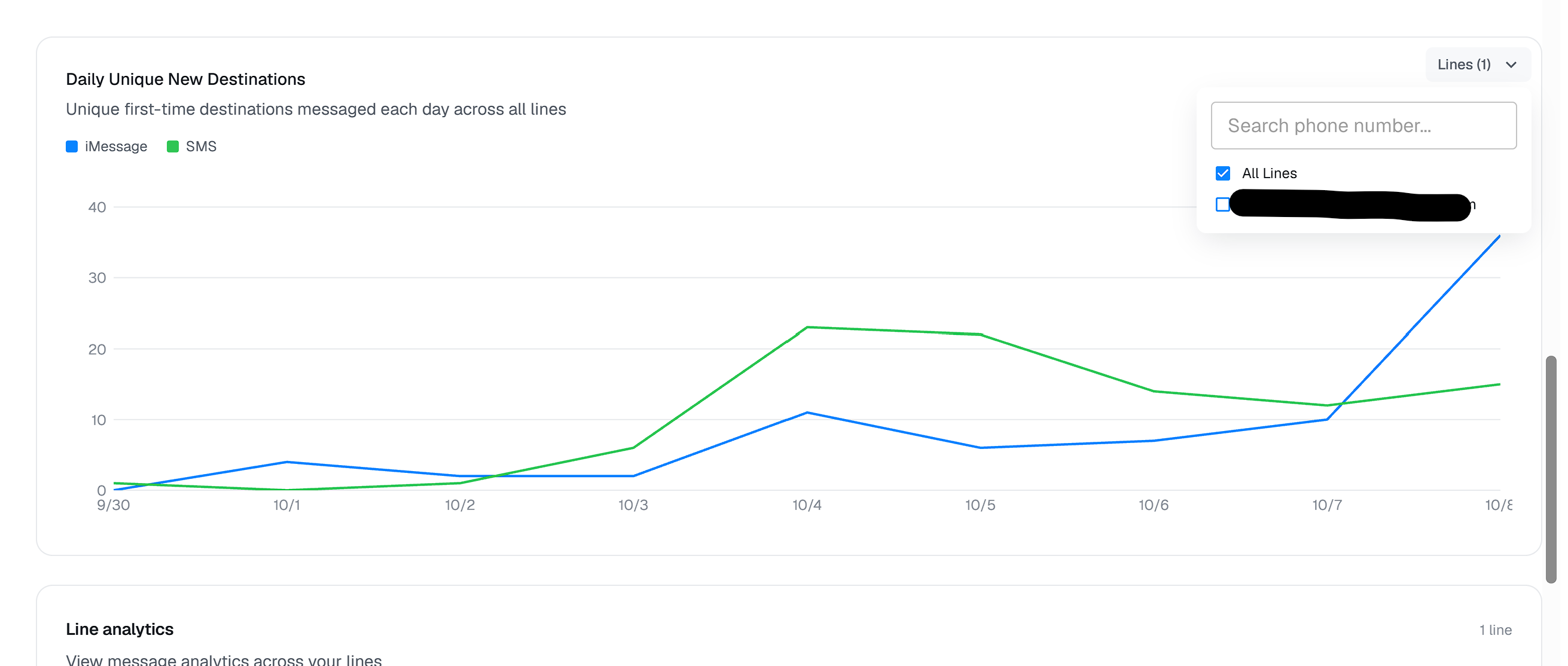
Unique New Contacts shows the people you texted for the first time from a line. These are the contacts that count toward each line's daily limit of 50 new contacts.
On the Unique New Contacts chart, use the Lines button to see one line at a time. The Line analytics table breaks the numbers out for each line.
To see how close each line is to its daily limit, check the line list in Conversations.
Dialer
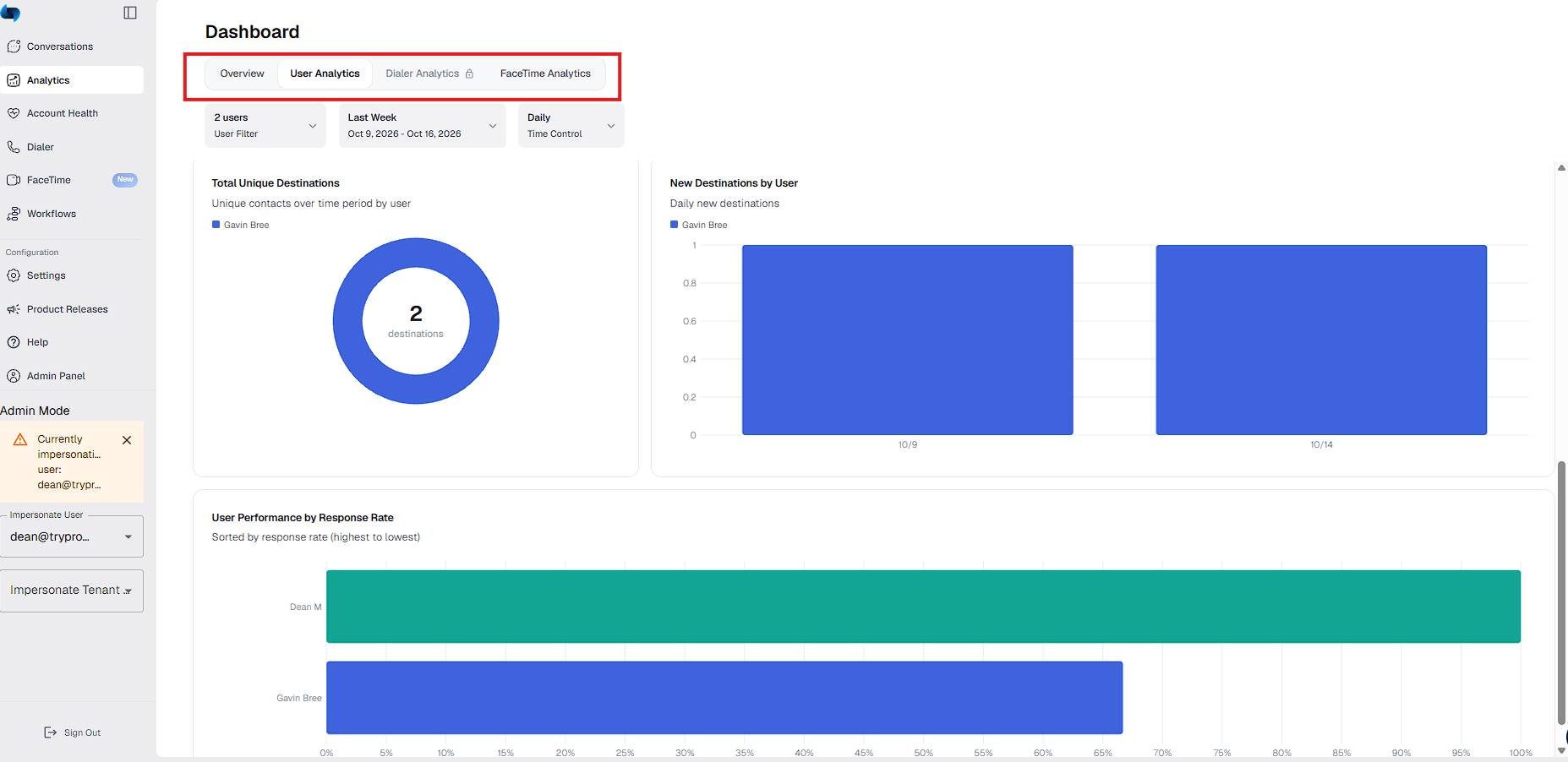
The Dialer tab is part of the Dialer add-on. It shows the outbound calls made through the Project Blue Dialer or the Chrome extension: Outbound Calls, Connected Calls, Average Duration and Available Rate, with charts.
The Setter Performance table breaks the numbers down by user, so you can see each rep's activity.
FaceTime Audio has its own FaceTime Analytics tab, with inbound calls included.
AI insights in conversations
AI insights live in your conversations, not on the Analytics page. On a computer, open a conversation. In the header at the top right, click the purple sparkle button (tooltip: Generate AI Insights). An AI Sales Insights panel opens with a Summary, Next Steps and what you're Waiting On. Use Refresh to regenerate it, and thumbs up or down to rate it.
Team members need a line assigned to see conversations, and so to see the button.
Your account has a daily limit of 50 generations per line, shared by the whole team.