
[REVIEW DRAFT] Contact Cards
What are contact cards?
A contact card is a native iMessage feature that shares your business name, and an optional photo or logo, when you start a new iMessage conversation. Recipients see an "Add Contact" option at the top of the conversation, so they can save you to their contacts. It shows your name and photo so recipients can recognize who's texting. Apple decides where a message appears in the recipient's inbox.
Contact cards are available on paid accounts.
How to set up a contact card
Log in to Project Blue and go to Settings > Contact Cards.
Click Create New Card.
Enter the First Name and Last Name you want to show. Both are required.
Optionally, click Upload Custom Image to add a headshot or company logo.
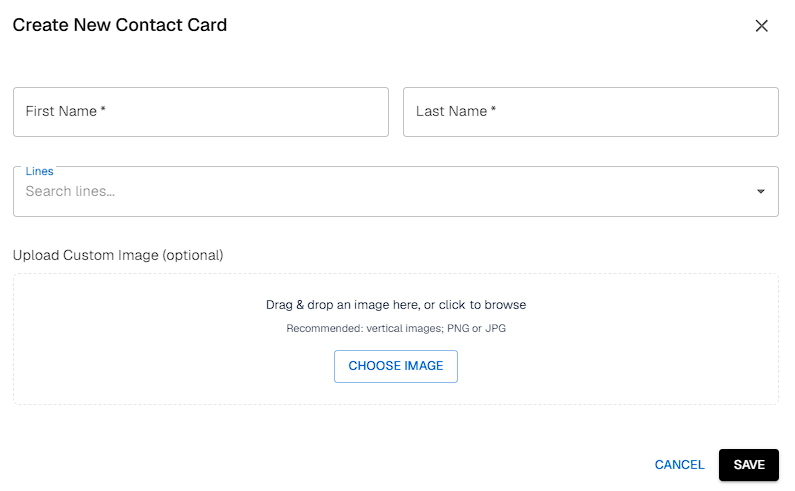
Choose which phone lines should use this card. You can use the same card on several lines, or create separate cards for different lines.
Click Save. A "Contact card saved" message confirms your card is being applied to the lines you chose.
The Contact Cards page shows each card as Active or In Progress. Only account owners and admins can save a card.
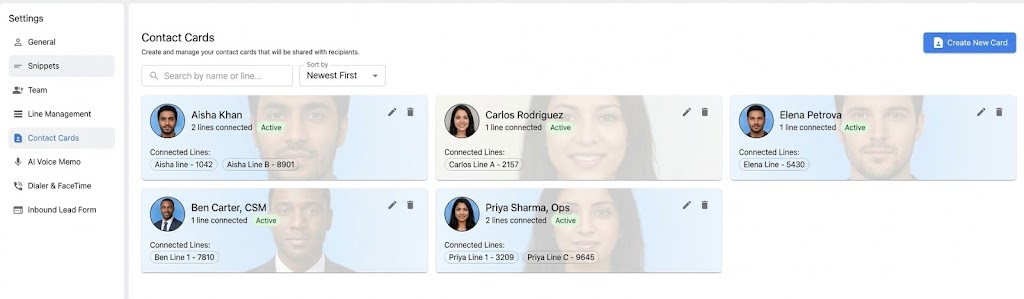
About photos
Photos can take longer to appear than the name, and may not display for every recipient. If your photo doesn't show, contact Project Blue support.
How sharing works
Contact cards work with iMessage conversations only, not SMS.
Your card is shared automatically with the first iMessage you send to a brand-new contact.
If you edit a card, the change applies to new conversations. Existing conversations keep what they have.
To send your card in a one-to-one iMessage yourself, use the share button in the chat window. The line must be active.
Contact cards aren't available for shared, pool or SMS-only lines.
If my contact card isn't showing
Check that the card shows Active on the Contact Cards page.
Test by sending a new iMessage to your own phone from the line.
If it still doesn't show, contact Project Blue support.
Best practices
Keep your name clear and short. It displays better on phones.
Set up a card for every active line so your messages look consistent.
Test after saving by messaging your own phone.
Need help?
Reply to any Project Blue email, message us in your dedicated Slack channel if you have one, or use the support chat in the dashboard.