
Call Forwarding & Masking
This article covers three related things: call forwarding for calls that come in to your Project Blue line, caller ID masking for calls you place from your CRM, and the verified caller ID that the Project Blue Dialer uses. They are set up in different places, so use the section that matches what you need.
Watch the step-by-step walkthrough for call forwarding and caller ID masking.
Call forwarding (incoming calls)
Video timestamp: 1:15 - 2:45
When a customer calls your Project Blue line's number, the call is forwarded to the number you choose. Many people forward to their CRM's phone system, but you can forward to any US phone number.
Set up call forwarding
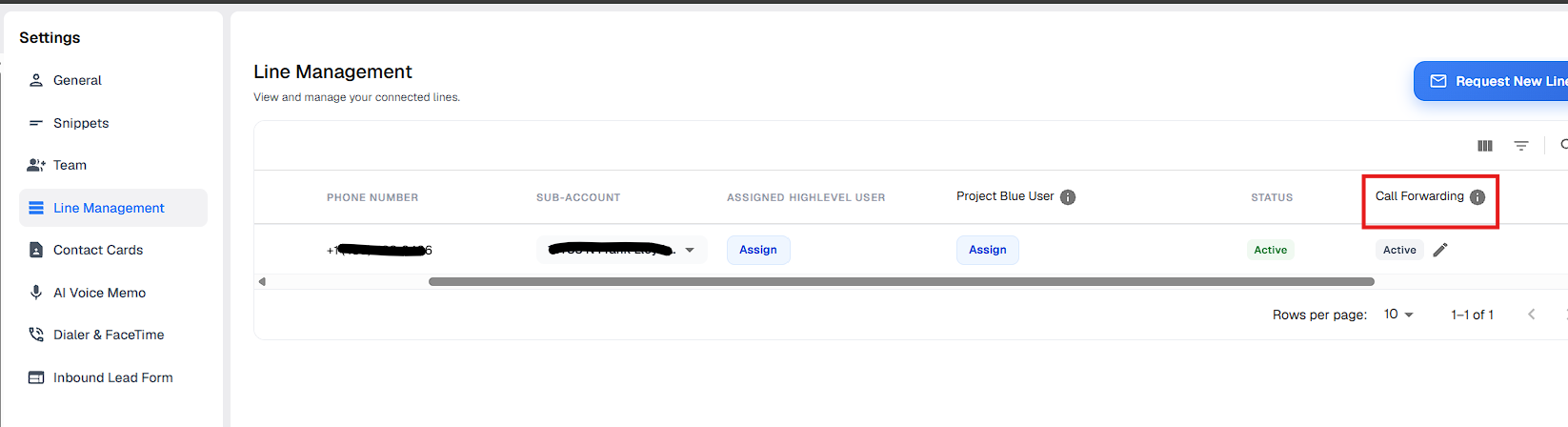
In the Project Blue web app, go to Settings → Line Management.
Find the line and click the pencil icon in the Call Forwarding column.
In the Edit call forwarding window, enter the number where calls to this line should ring. Only US domestic numbers are accepted (10 digits).
Click Save.
Only the account owner or an admin can change call forwarding. Other team members see "Only the account owner or an admin can change call settings."
What happens after you save
Forwarding isn't instant. Saving sends a request to the Project Blue team, who set the forward up on your line by hand. Until they finish, the line shows:
In Progress: your request is waiting for our team.
Active: forwarding is set up.
Inactive: no forwarding number is set.
If you change an existing number, you'll be asked to confirm with Update Number, and the line stays In Progress until the change is approved. Setup usually takes up to 24 hours.
You don't need a Dialer subscription to use call forwarding. Text-only (SMS) lines don't show the Call Forwarding column.
Call forwarding and inbound dialing
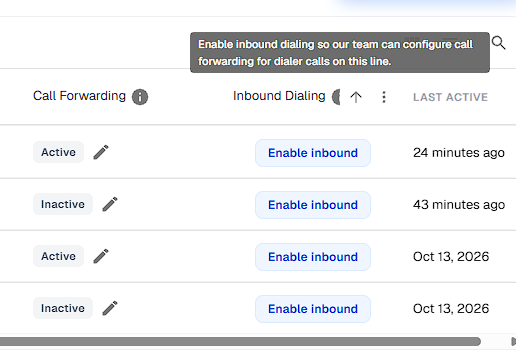
Call forwarding and inbound dialing both control where calls to your line go, so they affect each other:
On a line with inbound dialing turned on, the Edit call forwarding window offers Use Project Blue inbound number or Forward to a different number. Saving a different number turns inbound dialing off, and the window warns: "Inbound dialing pauses while calls forward to a number outside Project Blue."
Turning inbound dialing on for a line that already forwards to another number asks "Replace call forwarding?" The old number isn't saved.
You can't turn inbound dialing off yourself once it's on.
Caller ID masking (calls from your CRM)
Video timestamp: 2:45 - 6:30
Although caller ID masking is supported, some carriers don't like it and it may trigger their spam filters. If your business relies heavily on outbound phone sales, consider using another dialer and letting leads know you'll be reaching out from another line.
Caller ID masking makes calls you place from your CRM show your Project Blue line's number. You set it up in your own CRM (GoHighLevel), not in Project Blue. Project Blue has no masking setting.
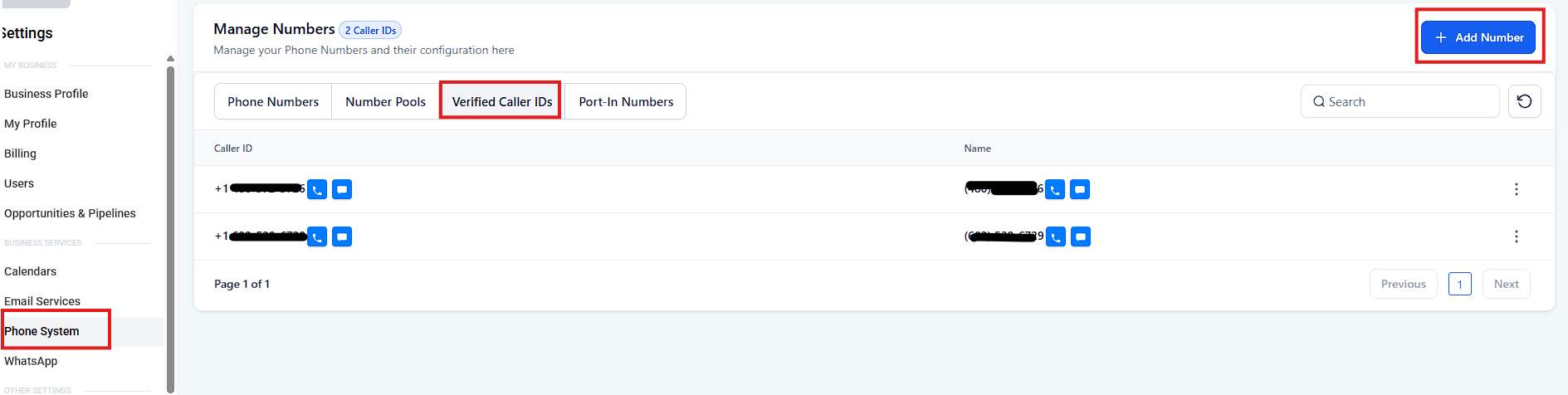
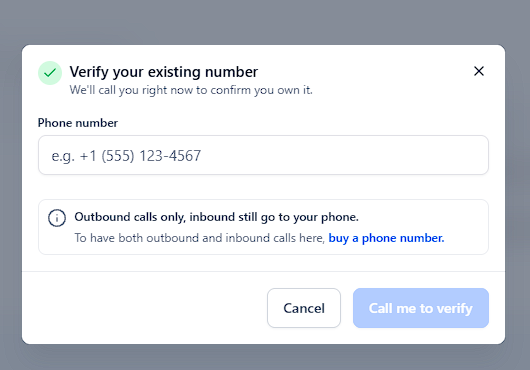
In GoHighLevel, masking uses a Verified Caller ID: you add the number under Phone Numbers → Verified Caller IDs, and GoHighLevel confirms it by calling the number and showing a six-digit code. Then you choose that number as the caller ID in your phone number's settings.
Set up call forwarding on the line first. The Project Blue number can't be answered directly, so call forwarding is what lets you pick up the verification call and read the code. Wait until forwarding shows Active before you add the number in GoHighLevel.
If calls show as "Spam Likely"
Video timestamp: 6:30 - 9:30
If you've bought a new line from your CRM and set up caller ID masking, your calls may show as "Spam Likely" or may not route through. This can happen for reasons outside our control. We recommend registering for STIR/SHAKEN to combat spoofing by carriers. The process depends on where you bought the CRM line, but it's the same idea. For HighLevel, use this resource: https://ideas.gohighlevel.com/changelog/register-for-shakenstir-to-avoid-call-being-marked-as-spam.
Verified caller ID for the Dialer (a different thing)
The name "verified caller ID" is also used for the Project Blue Dialer, and it isn't the same as the GoHighLevel setting above.
Who does it: the Project Blue team, not you or your CRM. Your line needs an active Dialer subscription first.
What it does: it lets the line place calls from the Dialer, with the line's own number shown as the caller ID. It only affects Dialer calls, not iMessage or text messages.
Caller ID names: carriers can take up to two weeks to show a registered caller ID name. Branded names can be up to 15 characters and are set up by hand for each line.
See How to Make Calls Directly from Your CRM Using the Project Blue Dialer.