
Getting Started with the Project Blue Mobile App
Project Blue is now on iOS and Android
You can now message and call directly from your phone using the Project Blue mobile app — available on both the App Store and Google Play.
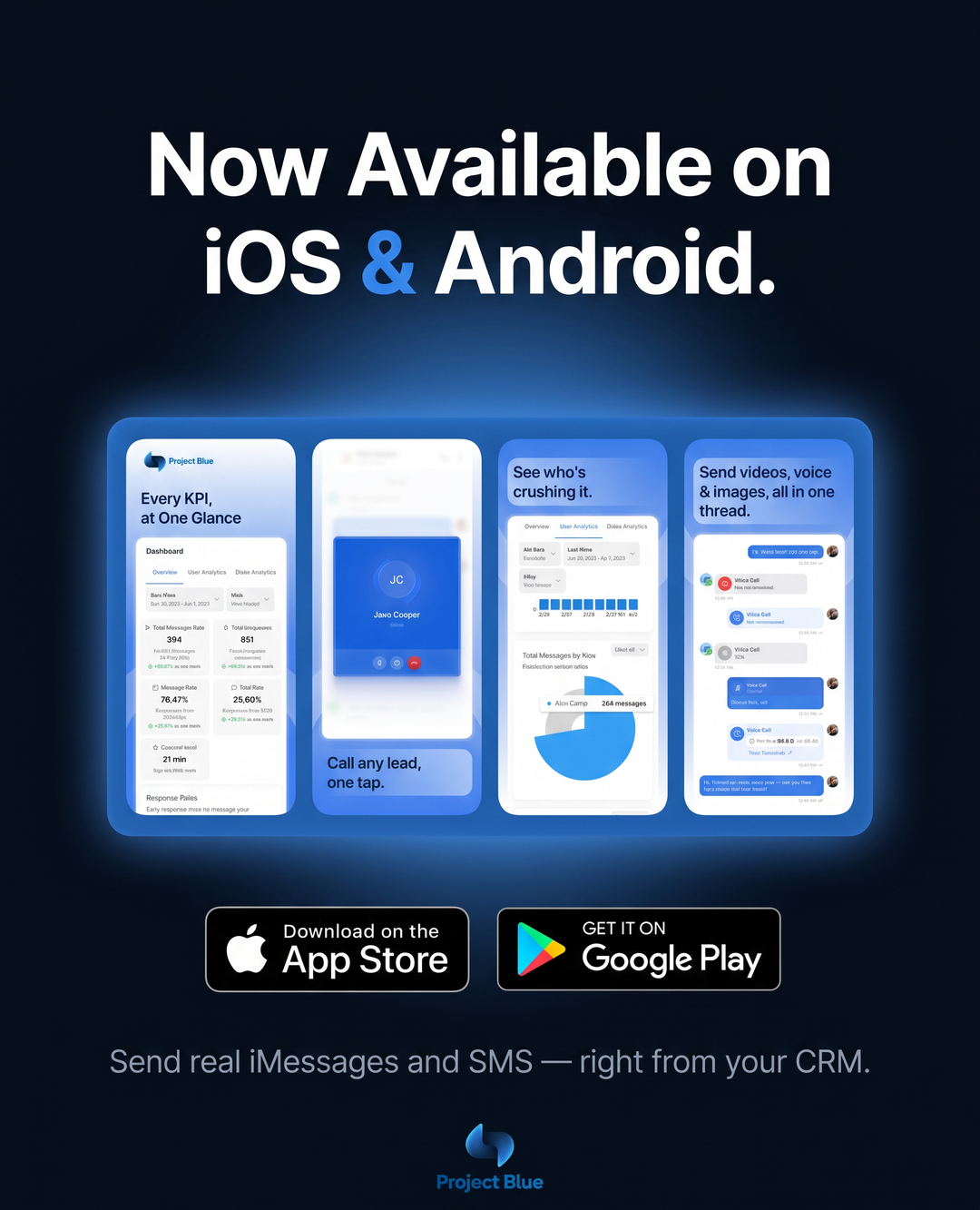
Download the App
Get the app on your device:
What You Can Do on Mobile
Send & receive messages — stay in touch with your contacts on the go
Make calls — call contacts directly from your mobile device with an active Dialer subscription (see the keypad steps below). To receive calls on your iPhone, see How to Set Up Inbound Dialing (Dialer & FaceTime). Receiving calls on Android is coming soon.
CRM sync — if you've connected a CRM to Project Blue, all messages and calls automatically sync so nothing falls through the cracks
New lines in a message — press Return to start a new line, and tap Send to send.
Make a call with the keypad
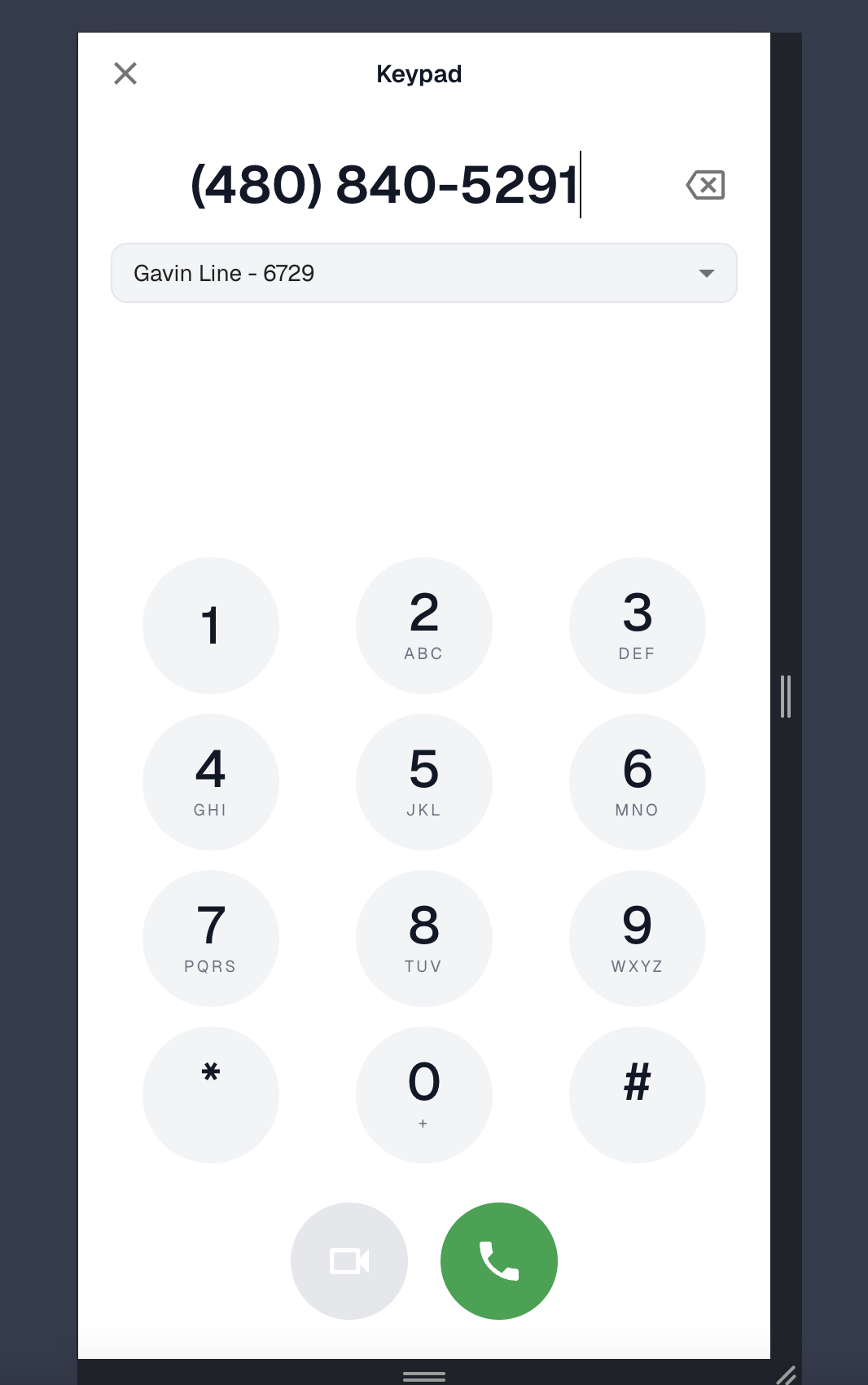
You can call any number from the mobile app, even if they're not a contact yet. Calling needs an active Dialer subscription. See How to Make Calls Directly from Your CRM Using the Project Blue Dialer.
Open Conversations and tap the keypad icon at the top of the list, next to the filter button.
Type or paste the number. US numbers format automatically. For an international number, hold 0 as the first key to add a +.
Use the dropdown under the number to choose which of your lines to call from.
Tap the green phone button to call, or the video button to call with FaceTime Audio. FaceTime Audio is only available on accounts that have been given access.
Once the call goes out, the conversation opens on that same line, so you can text the contact right after.
If you can't place a call
No Dialer subscription: the phone button reads Subscribe to Dialer to make calls. Tap it to open the Dialer page and subscribe.
Subscribed, but the line isn't set up for calling: the button is grayed out with a message such as "This conversation's line is not dialer enabled" or "Calls require a line with a verified caller ID. Contact support to enable one." Contact Project Blue support to get the line ready.
International numbers: international calling has to be turned on for the line first. If an international call doesn't connect, contact Project Blue support to enable it.
Push Notifications
Mobile push notifications are now available! To manage them, go to Settings → General → Mobile Notifications. You can turn on push notifications for inbound messages, and choose whether you're notified for all conversations or only lines assigned to you in Line Management.
Need Help?
If you run into any issues downloading or using the app, reach out to our support team and we'll get you sorted.