
WhatsApp for Relay: Reach Contacts Outside the US and Canada
Relay can now send over WhatsApp, so you can keep reaching contacts outside the US and Canada when your line can't deliver. Setup is self serve and takes a few steps.
How Relay picks the channel
Relay chooses the channel for each contact. US and Canada numbers go over 10DLC text. Everyone else goes over WhatsApp.
Relay steps in at the same times as it does for text. See Relay: A Backup Number That Keeps Your Texts Going.
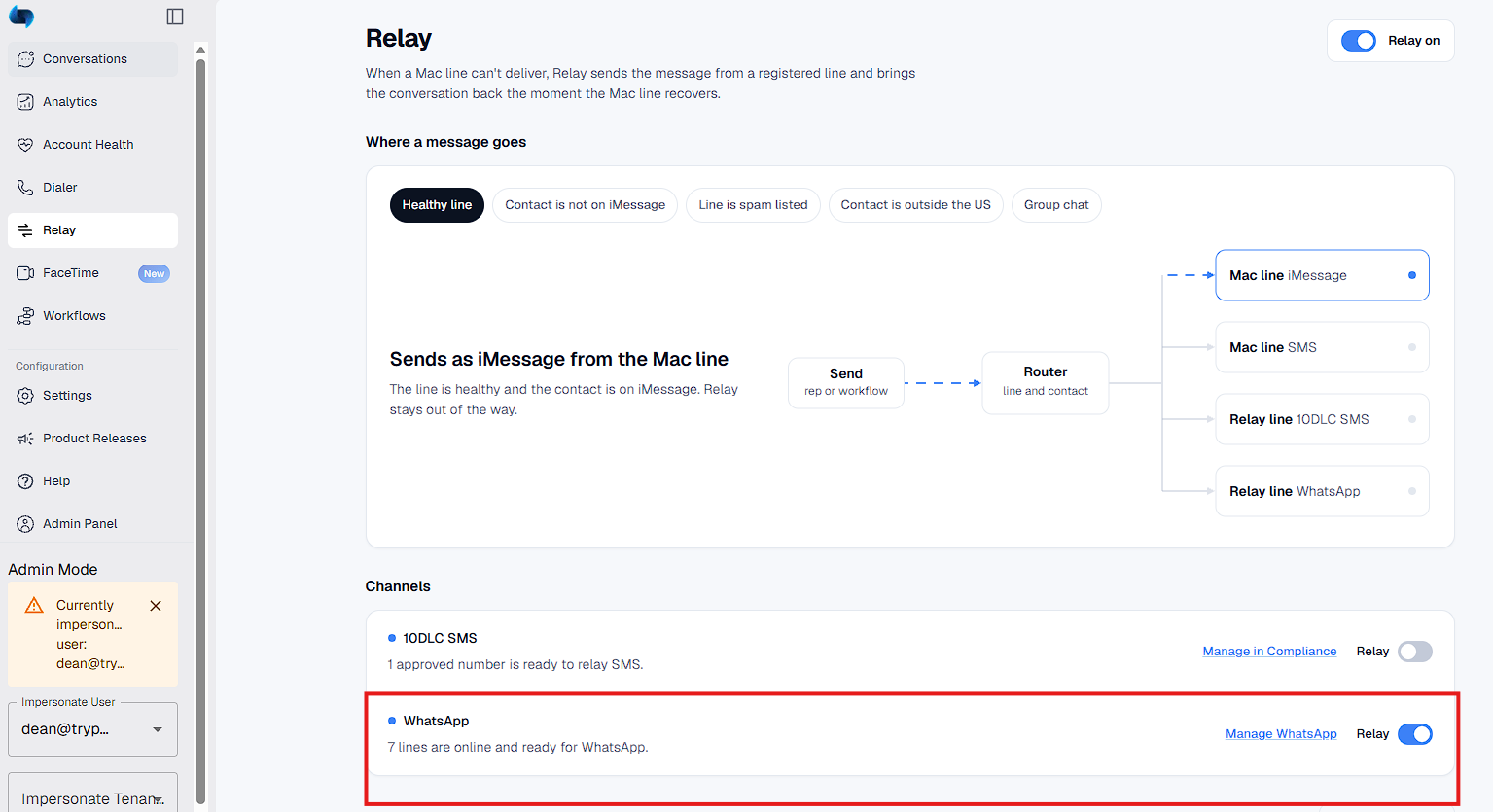
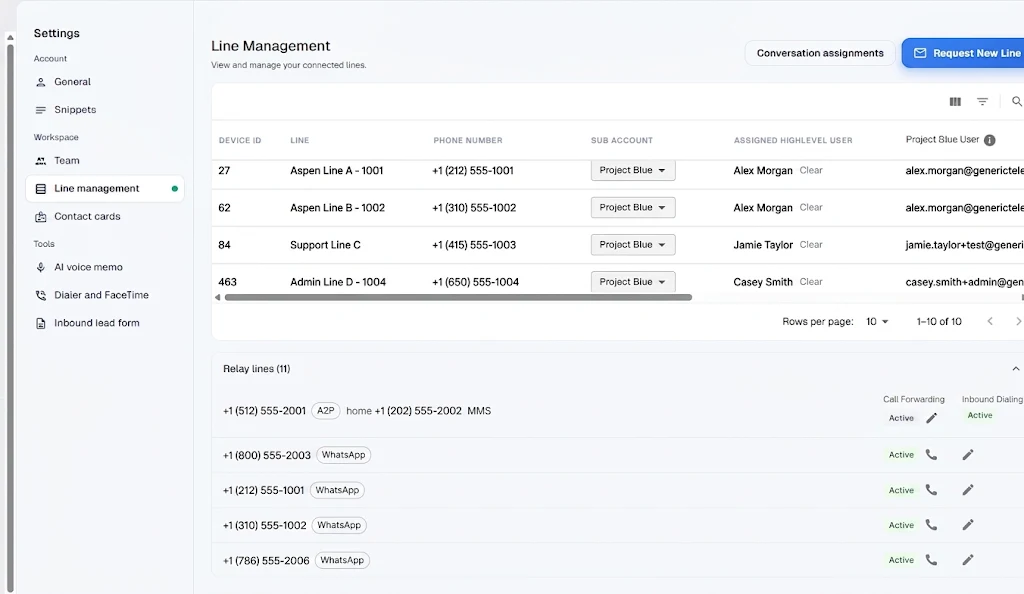
On the Relay page, the Channels section has a Relay switch for each channel (10DLC SMS and WhatsApp), so you choose which channels Relay can use. You can turn on only WhatsApp.
Every iMessage line of your own can be registered on WhatsApp, using the same phone number.
Before you start
Submit your business compliance in Settings > Phone compliance. That sets up your messaging account. Until then, Connect WhatsApp stays greyed out.
You're an account owner or admin, and an admin of your company's Meta business portfolio. You need a Facebook business profile. It goes smoothest if Meta has already verified your business and your website matches your business.
You have a line of your own. Shared trial lines can't be used. The line's number can't already be on WhatsApp or the WhatsApp Business app.
Use a computer with popups allowed. Set aside about 10 minutes.
Set it up
Watch the setup walkthrough, or follow the steps below.
Step 1: Connect your WhatsApp account
Open Settings > Phone compliance and the WhatsApp card, or the WhatsApp row on the Relay page, and click Set up WhatsApp.
Pick the line you want to register first.
Click Connect WhatsApp. A Facebook window opens, and nothing is sent to your contacts. In it:
Click Continue on the first screen.
Enter the line's number. Use Copy number on our page.
Choose Text message. The code is texted to your line and shows on our page within a minute. Keep that tab open, and type the code into the Facebook window.
Choose your business portfolio.
Choose Create a WhatsApp account.
Fill in your business profile: your business name, country and website. Use your real business details, because Meta checks them.
Click Confirm to share access with Project Blue Relay. If Meta asks for a confirmation code for your Facebook account, enter it.
When you see "Your account is connected", click Finish.
Step 2: Verify the number
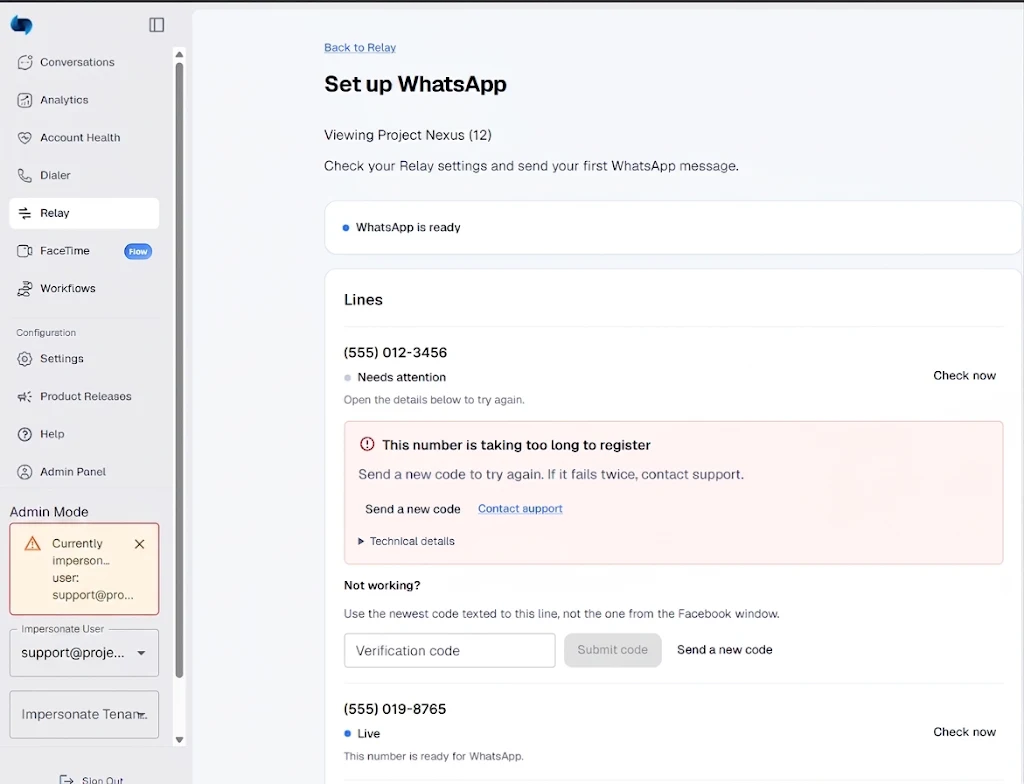
Project Blue registers the number and takes care of verification. It usually takes a few minutes, and you can leave the page. Each line on the Set up WhatsApp page shows Confirming while WhatsApp checks it, then Live when the number is ready. Click Check now to refresh a line.
If the page asks for a code, use a new code texted to the line after the Facebook window closed, not the one you already typed into it. Enter it in the Not working? box and click Submit code, or click Send a new code.
Step 3: Message template
Project Blue creates your message template from your business name and submits it to Meta. Approval usually takes a few hours, sometimes up to a day. You get an email when it's approved, and the Message template card shows Approved.
Step 4: Turn it on
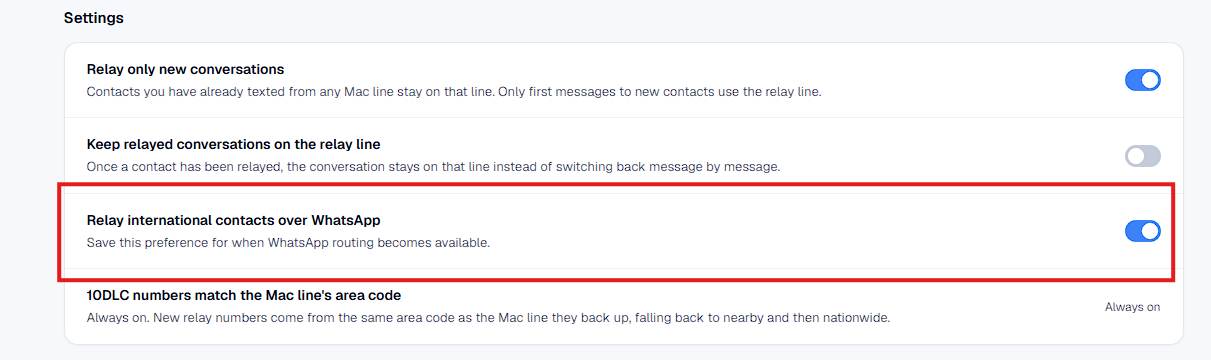
On the Relay page, turn on Relay for WhatsApp in the Channels section. Then turn on Relay international contacts over WhatsApp under Settings.
To add your other lines, use Add to WhatsApp. They don't need the Facebook window.
Until your template is approved, international messages keep sending from your own line.
If something goes wrong
If Meta hasn't verified your business, or rejected it, your number may not finish verifying. Open the business security settings on the WhatsApp page to check your business in Meta.
If Meta says your business portfolio has restrictions and you can only create a limited number of WhatsApp accounts, finish your business verification in Meta, then try again.
If the Facebook window shows an error, close it, refresh our page and try once more. Avoid disconnecting and connecting again. Too many codes locks the number for a while.
Your customer success manager can walk you through it on a short call. You click through the Facebook window, and we take care of the rest.
The first message and the 24 hour window
WhatsApp only allows regular messages to someone who has messaged you in the last 24 hours. This is WhatsApp's rule, and we can't change it.
If the contact messaged you in the last 24 hours, you can send regular messages.
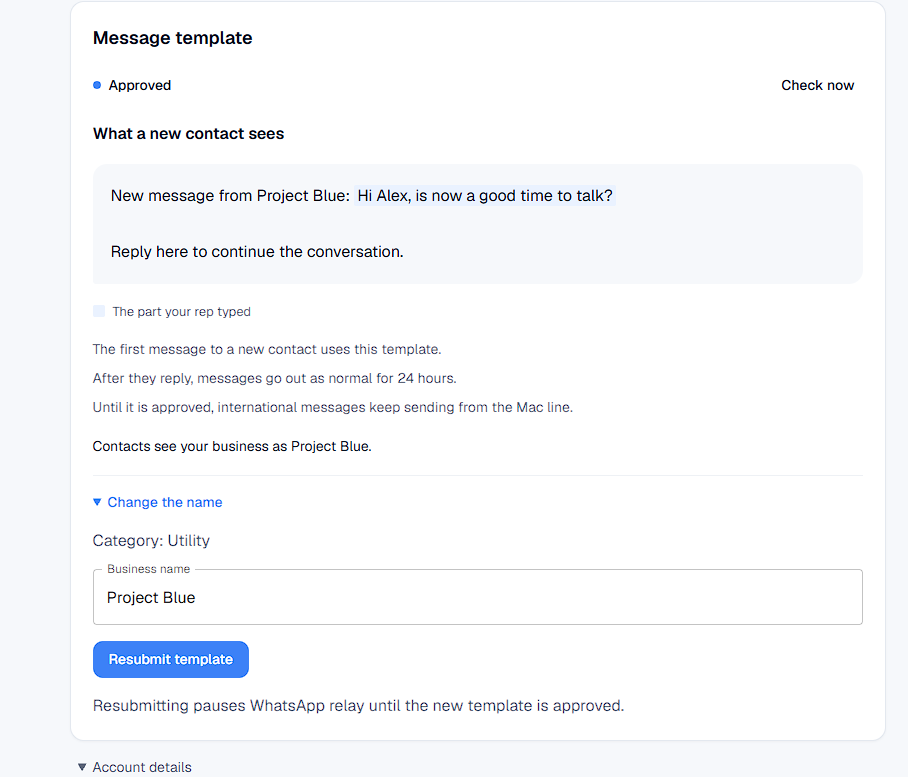
If they haven't, your message goes out in your approved template. A new contact sees: "New message from [your business name]: [what you typed]. Reply here to continue the conversation."
The first message can be up to 900 characters. It's sent as one paragraph, as text only.
Once they reply, you have 24 hours of normal messaging. Every reply restarts the 24 hours. Photos, audio and video work after they reply.
Change your business name
The template shows your business name. To change it, open Change the name on the Message template card, enter the Business name and click Resubmit template.
Send over WhatsApp yourself
Open the conversation.
Open the line menu and choose Relay.
Pick WhatsApp and the line you want. The tooltip reads "Sends from this line's number on WhatsApp."
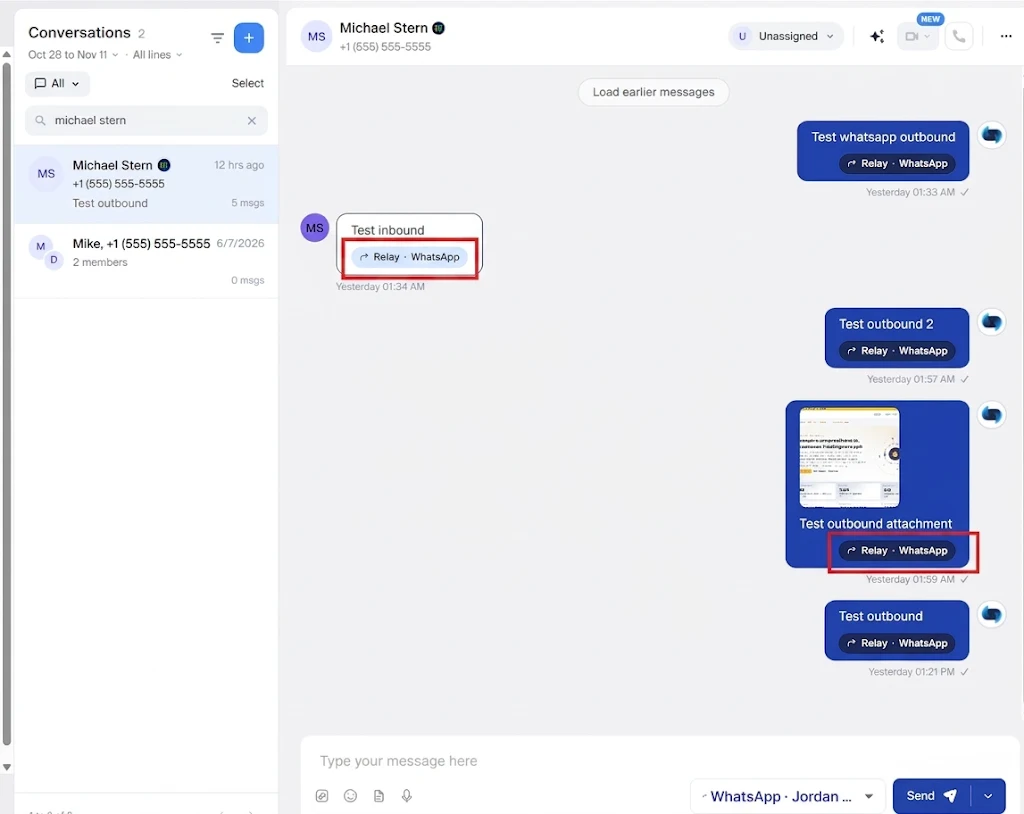
Messages that went over WhatsApp show a Relay · WhatsApp label under them, and so do the replies.
Test it
On the Set up WhatsApp page, the Good to know note suggests using a new contact outside the US and Canada for your test.
Need help?
Use Chat with support on the Set up WhatsApp page if you're stuck, or contact Project Blue support if the setup doesn't finish.