
How to Set Up Voicemail Greetings for Inbound Dialer Lines
Choose what callers hear when nobody answers an inbound Dialer line. Send them to voicemail or end the call, and set the greeting they hear before the beep.
Before you start
The line has a Dialer subscription and inbound dialing is Active on it. If you haven't turned inbound on yet, see How to Set Up Inbound Dialing (Dialer & FaceTime).
You're an account owner or an admin. Only owners and admins can see and change voicemail settings.
Voicemail is set per line. If you have several inbound lines, set each one separately.
Voicemail greetings apply to lines that use inbound dialing. If a line only forwards calls to GoHighLevel or to another phone, this setting doesn't apply to it.
Where to find it
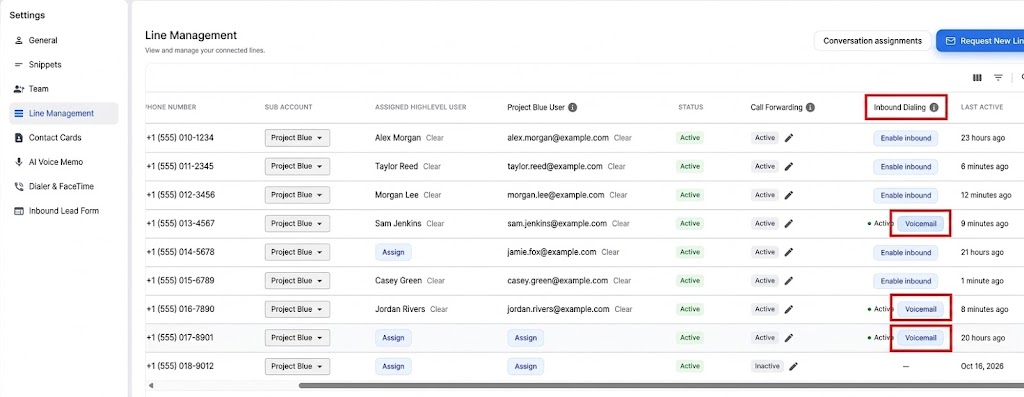
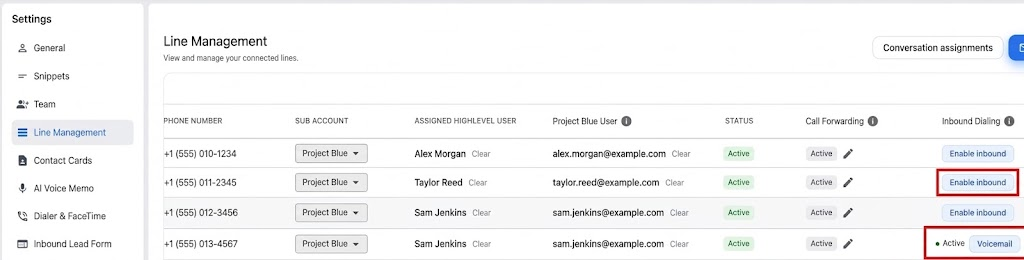
Line Management: go to Settings > Line Management. In the Inbound Dialing column, click Voicemail on any line that shows Active.
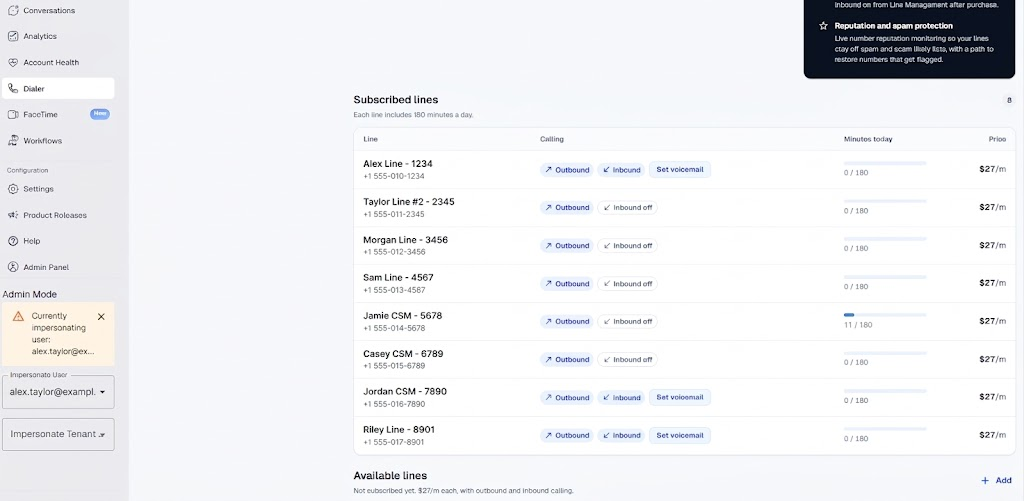
Dialer page: open Dialer in the left menu. Under Subscribed lines, click Set voicemail next to any line that has inbound on.
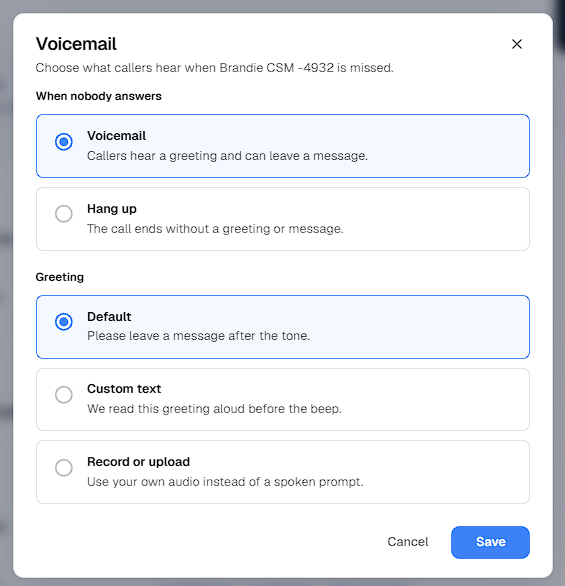
Choose what happens when nobody answers
In the voicemail window, pick one of two options for missed calls:
Voicemail: the caller hears your greeting and can leave a message.
Hang up: the call ends.
Calls that come in when nobody is set to ring follow the same choice. With Voicemail selected, those callers reach voicemail too.
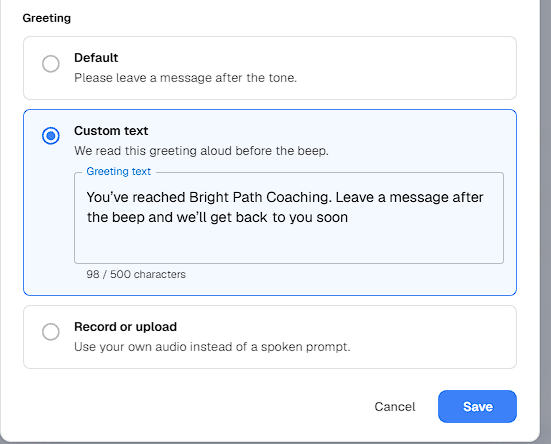
Greeting options
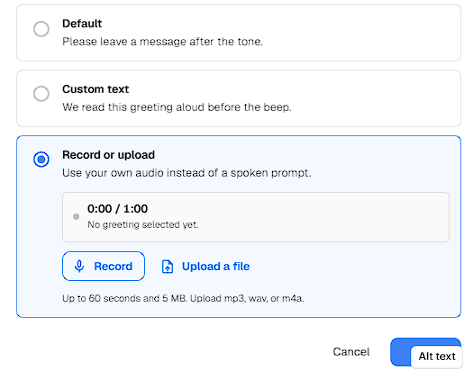
When you choose Voicemail, pick the greeting callers hear:
Default: callers hear "Please leave a message after the tone."
Custom text: type up to 500 characters and Project Blue reads it aloud to callers in a text-to-speech voice (US English) before the beep. For the best result, spell names the way they sound. Call your line to hear exactly what callers will hear.
Record or upload: record your greeting in your browser, or upload an mp3, wav or m4a file. Greetings can be up to 60 seconds and 5 MB. You can play it back before you save.
Where your voicemails go
Callers can leave a message of up to 2 minutes. Voicemails show up in Dialer > Call logs with a transcript, and they sync to your CRM like any other call. See Call Recordings and Transcripts.
If you can't find it
Check your role. Only owners and admins see the voicemail button. Make sure you're signed in with an admin account.
Turn inbound on first. The button appears once inbound dialing shows Active on the line. If the line shows Enable inbound instead, turn inbound on first.
Shared and pool lines don't support inbound dialing, so they don't have voicemail.
Set each line. If you have several inbound lines, open the voicemail window for each one.