
How to Submit Your Business Information (Phone Compliance)
Before your business can place calls or send texts at scale, carriers need to know who you are. You do this once by submitting your business information in Project Blue. It's a standard telecom step, and it takes about 10 minutes.
Before you start
You're an account owner or admin. Only owners and admins can submit.
Have your business details ready: legal business name, EIN, business address and website URL. The website is required. It can be any website, and it doesn't need to match your email's domain. If you operate under a different brand name (a DBA), have that ready too. It's optional.
Use your legal business name and address exactly as they appear on your IRS records. Carriers match your legal name and EIN against public records, and a mismatch is the most common reason approvals stall.
Have an email address at your business's own domain, such as name@yourcompany.com. The form doesn't accept free email providers like Gmail, Yahoo, Outlook or iCloud.
Have the name, title and phone number of the person who is responsible for your calls and can sign for your business.
You don't need a Dialer subscription to submit your business information. To place calls, you also need a Dialer subscription.
Where to find it
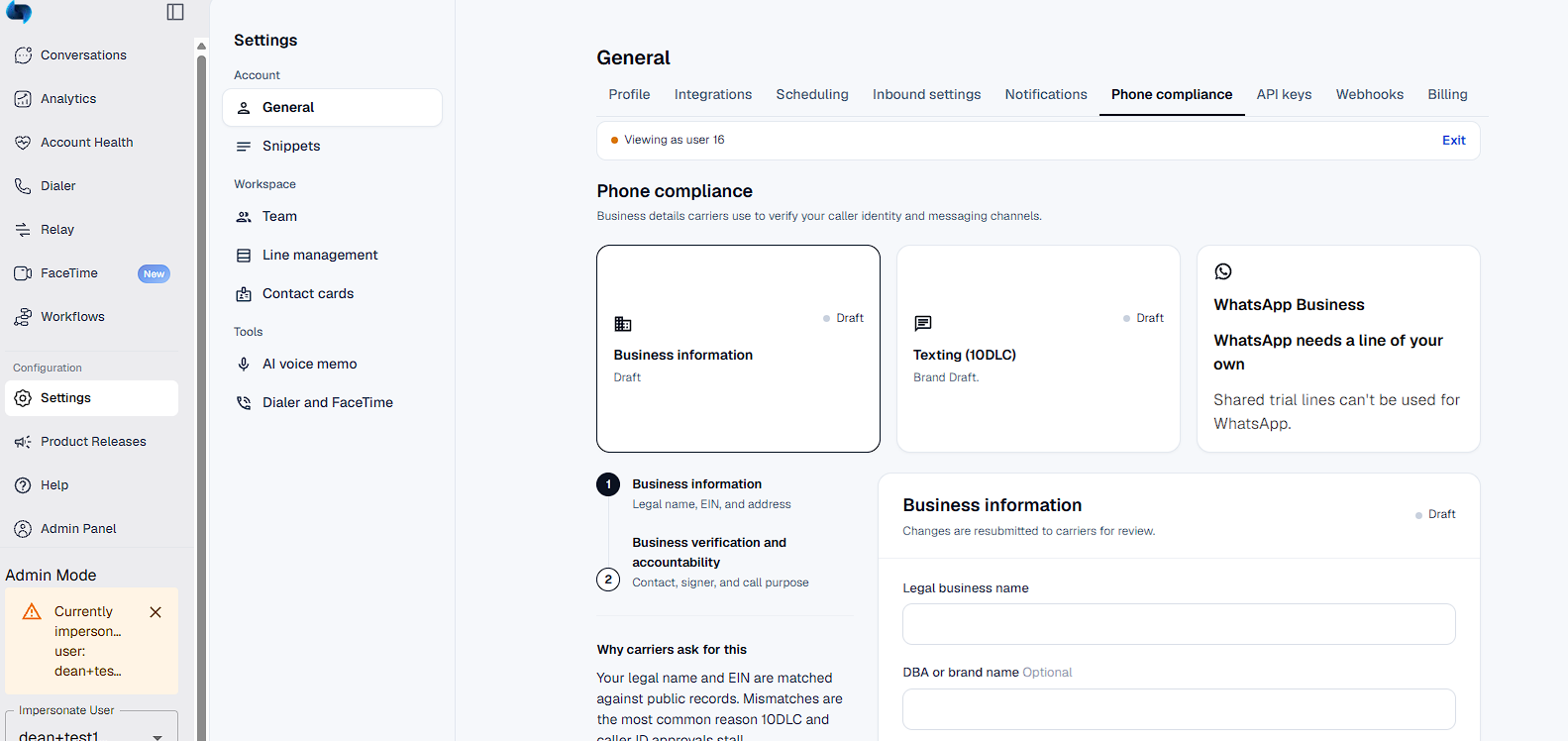
Go to Settings > Phone compliance. It's under Workspace in the Settings menu. You can also open the Compliance tab on the Dialer page, which shows the same form.
The page has a card for each registration:
Business information: the registration in this article. Everything else builds on it.
Texting (10DLC): a separate registration for texting. It's covered in its own article.
WhatsApp Business: shows what you need next for WhatsApp, such as a line of your own (shared trial lines can't be used) or finishing your business compliance, and shows WhatsApp is ready once it's set up. See WhatsApp for Relay.
Submit your business information
The form has two steps: Business information and Business verification and accountability.
Open Settings > Phone compliance and click the Business information card.
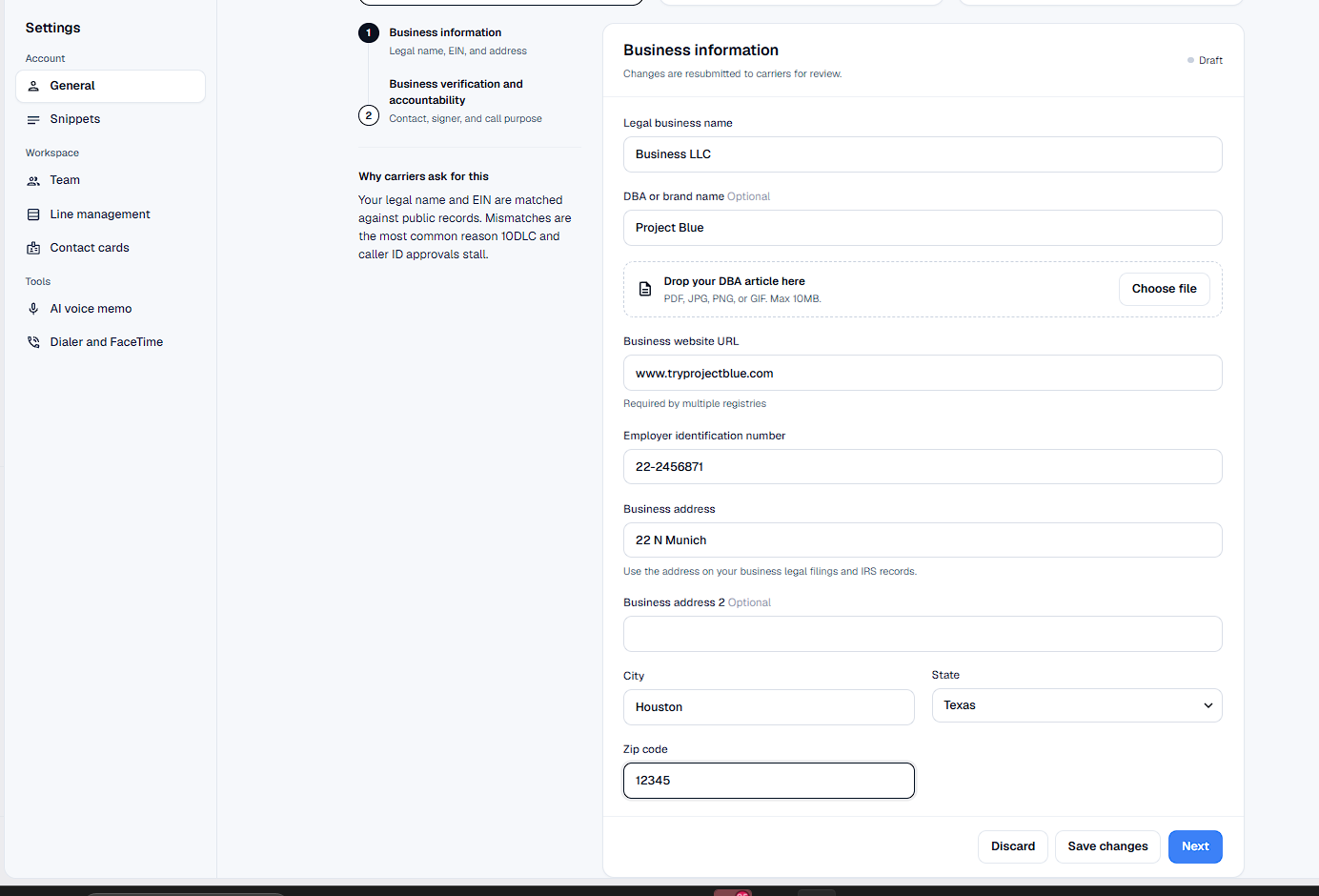
On the Business information step, enter your legal business name, your business website URL, your EIN and your business address (address, city, state and zip code). Use the address on your business legal filings and IRS records. If you have a DBA or brand name, you can add it, and you can upload your DBA document (PDF, JPG, PNG or GIF, up to 10 MB). Both are optional. Click Next.
On the Business verification and accountability step, enter your primary business contact name, your business email, your business phone number, and the signer name and signer title. The signer is the person responsible for calls. The business email has to be at your own domain. If it uses Gmail, Yahoo or another free provider, the form shows "Business email must use a domain-based email address (not Gmail, Yahoo, etc.)" and the submit button stays greyed out until you change it.
Under Primary call purpose, tick what you'll call about: Sales, Customer support, Appointment reminders, Billing / collections, Follow-ups or Account notifications. You can tick more than one.
Tick the authorization box: "I authorize Project Blue to submit my business information to third party caller identity, reputation, and carrier trust registries on my behalf and to act as my point of contact."
Click Submit registration.
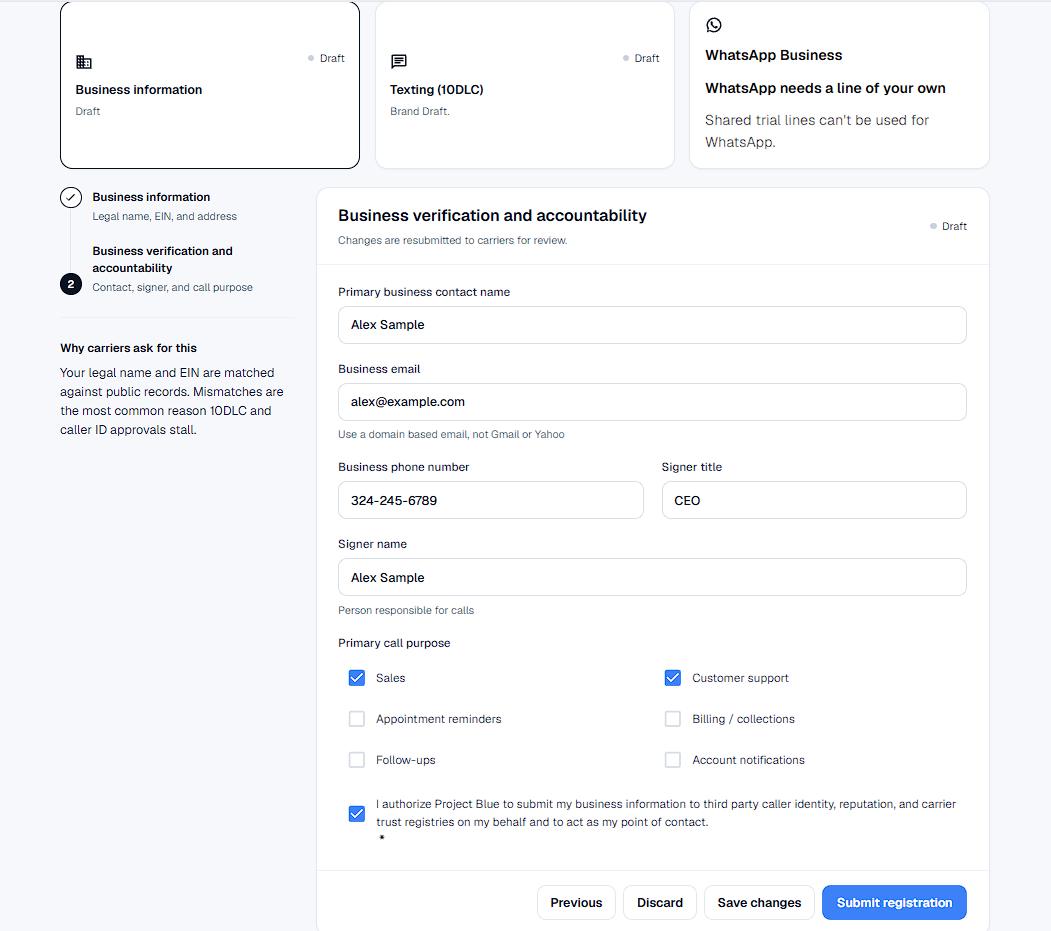
Click Save changes at any time to keep a draft and come back later. The card shows Draft until you submit. Click Previous to go back to the first step.
After you submit
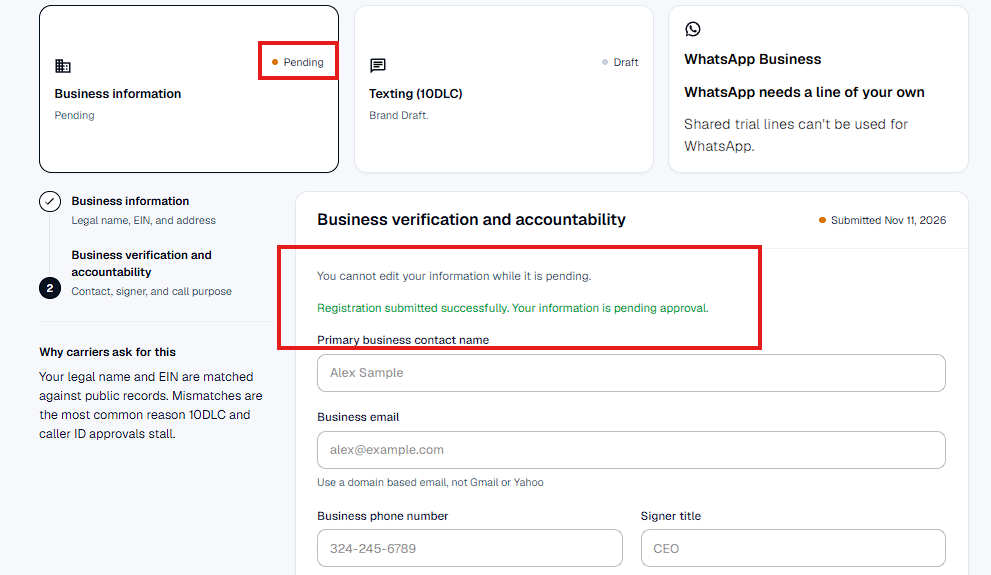
The Business information card moves through three statuses: Draft, then Pending, then Approved.
Pending: the card changes to Pending, and the page shows "Registration submitted successfully. Your information is pending approval." While it's pending, the form shows "You cannot edit your information while it is pending."
Approved: the card shows Approved with the date, for example "Approved Jan 13, 2026".
Our team registers your business with the carriers. We may email you if we need documents, such as your EIN paperwork or proof of your business name.
Review is usually quick, often within a few days. You get an email when your registration is approved. It goes to the email address you use to log in to Project Blue. The business email you typed in the form doesn't receive these messages.
If it's rejected, the page shows a Rejected status. Fix what it points to and click Resubmit registration.
If you change your business information later, your changes are resubmitted to the carriers for review.
For calling, we also verify the caller ID on each of your lines. Calling is fully set up once your registration is approved and your caller ID is verified.
What it sets up
Submitting your business information also sets up the messaging account that Relay and WhatsApp use. Until it's submitted, Connect WhatsApp stays greyed out.
Calls to people you haven't spoken to
It can take several days after approval for carriers to fully recognize your registration, so some people may still see "Potential Spam" on cold calls. Registration helps, but it can't guarantee how every carrier labels a call.
Need help?
Contact Project Blue support if your registration is rejected and you're not sure why, if you don't have an email address at your business's domain, or if you haven't heard back after a few days.