
FaceTime Audio: What It Is, What You Need and How to Use It
FaceTime Audio lets you call contacts on iMessage with a FaceTime Audio call from your Project Blue line, right from your CRM, the web app or the mobile app. It has its own subscription and its own limits, separate from the Dialer.
Getting access
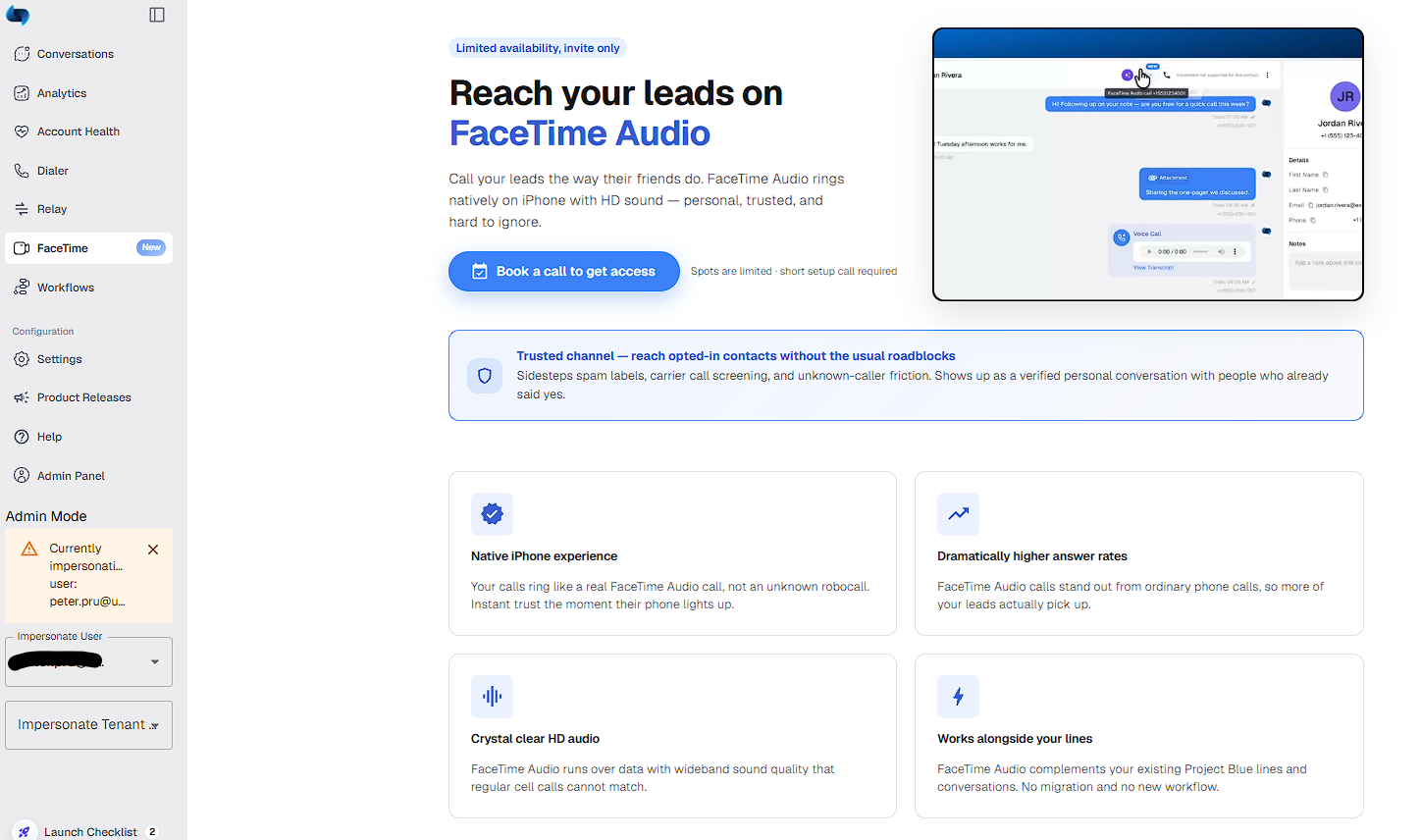
FaceTime Audio has limited availability and is invite only.
Click FaceTime in the left menu of the web app. In the mobile app, tap the video button on a conversation, and it opens the same page.
Click Book a call to get access and pick a time.
After the call, our team sets up your line and marks it live.
Once your line is live, the FaceTime page lists your FaceTime verified lines. Use Get another FaceTime line to add more. Trial accounts, and team members with the User permission, don't see the FaceTime page.
What you need
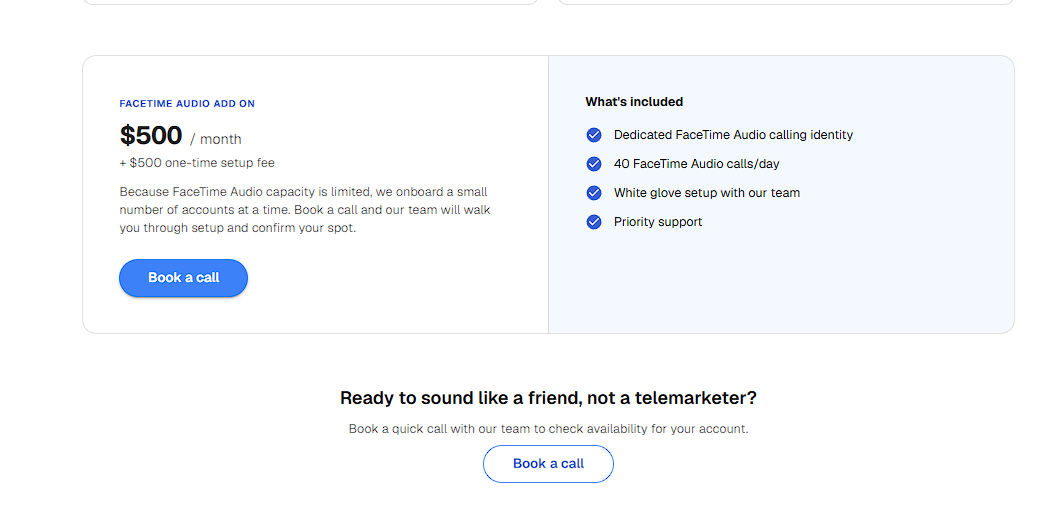
A live FaceTime subscription on the line. Our team sets this up for you.
You don't need a Dialer subscription.
You don't need approved phone compliance.
An inbound-only line can't make or receive FaceTime Audio calls.
Place a call
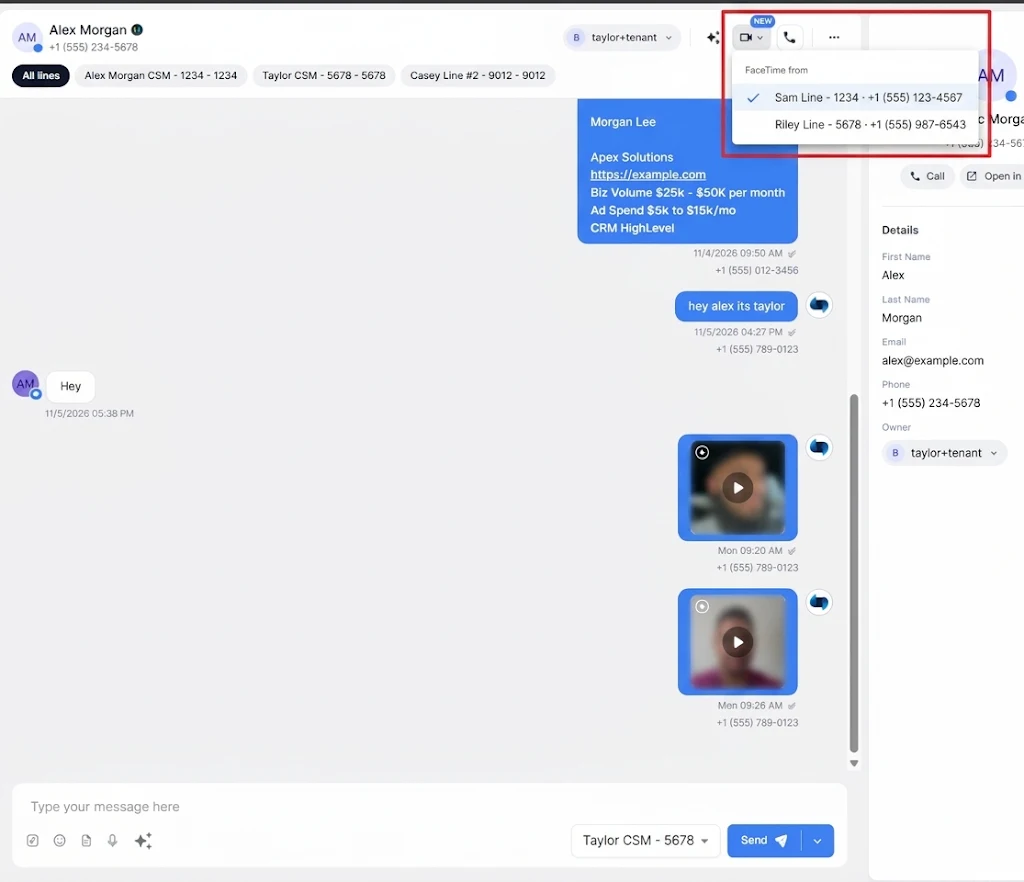
In a conversation, the phone icon places a regular Dialer call, and the video camera icon places a FaceTime Audio call.
In the mobile app, tap the video button to call with FaceTime Audio.
The blue phone icon in your CRM can start a FaceTime Audio call by itself for contacts on iMessage. See Smart Dial: When the Phone Icon Starts a FaceTime Audio Call.
Receive calls
To get inbound FaceTime Audio calls, turn on Inbound calls in Settings > Dialer & FaceTime and choose who receives them. It's off by default, and nothing rings until you turn it on. Calls ring in the web app and Chrome extension with Accept and Decline buttons, and send a push notification to the mobile app. FaceTime calls don't go to voicemail. See How to Set Up Inbound Dialing (Dialer & FaceTime).
Limits and minutes
FaceTime Audio calls don't use Dialer minutes. There's no minutes cap and no limit on how long a call can be.
Each line has a daily limit on how many different numbers you can call. Calling a number you've already called that day on the same line doesn't count, and inbound calls aren't counted. If you reach the limit, you see "You've reached today's FaceTime dial limit on this line", and you can try a new number the next day.
Recordings, transcripts and your CRM
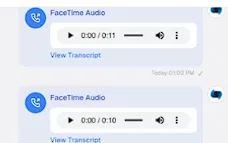
Answered FaceTime Audio calls are recorded and transcribed automatically. A few minutes after the call ends, the recording, transcript and a call outcome appear on the FaceTime Audio card in the contact's conversation. Calls that aren't answered or are declined have no recording.
Answered calls are also logged in your CRM: GoHighLevel (including the Project Blue: Call Completed trigger), HubSpot, and Close when the number matches a lead and the line's Close sync is on.
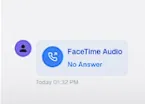
See Call Recordings and Transcripts and Call Completed automation trigger (GoHighLevel).
If a call doesn't go through
What you see | What to do |
|---|---|
"No active FaceTime subscription for this device" | The line doesn't have FaceTime Audio yet. Book a call on the FaceTime page. |
"Inbound only lines cannot make or receive calls. Upgrade to enable them." | The line is inbound only. Contact Project Blue support to upgrade it. |
"You've reached today's FaceTime dial limit on this line" | Redial numbers you've already called today, or try a new number tomorrow. |
"FaceTime Audio is not set up on this account" | Trial accounts don't have FaceTime Audio. Contact Project Blue support. |
"Call failed" | Try again. If it keeps happening, contact Project Blue support. |
Incoming calls don't ring | Check that Inbound calls is on in Settings > Dialer & FaceTime. |
Need help?
Contact Project Blue support if a call keeps failing, or if you want to add FaceTime Audio to more lines.