
Call Completed automation trigger (GoHighLevel)
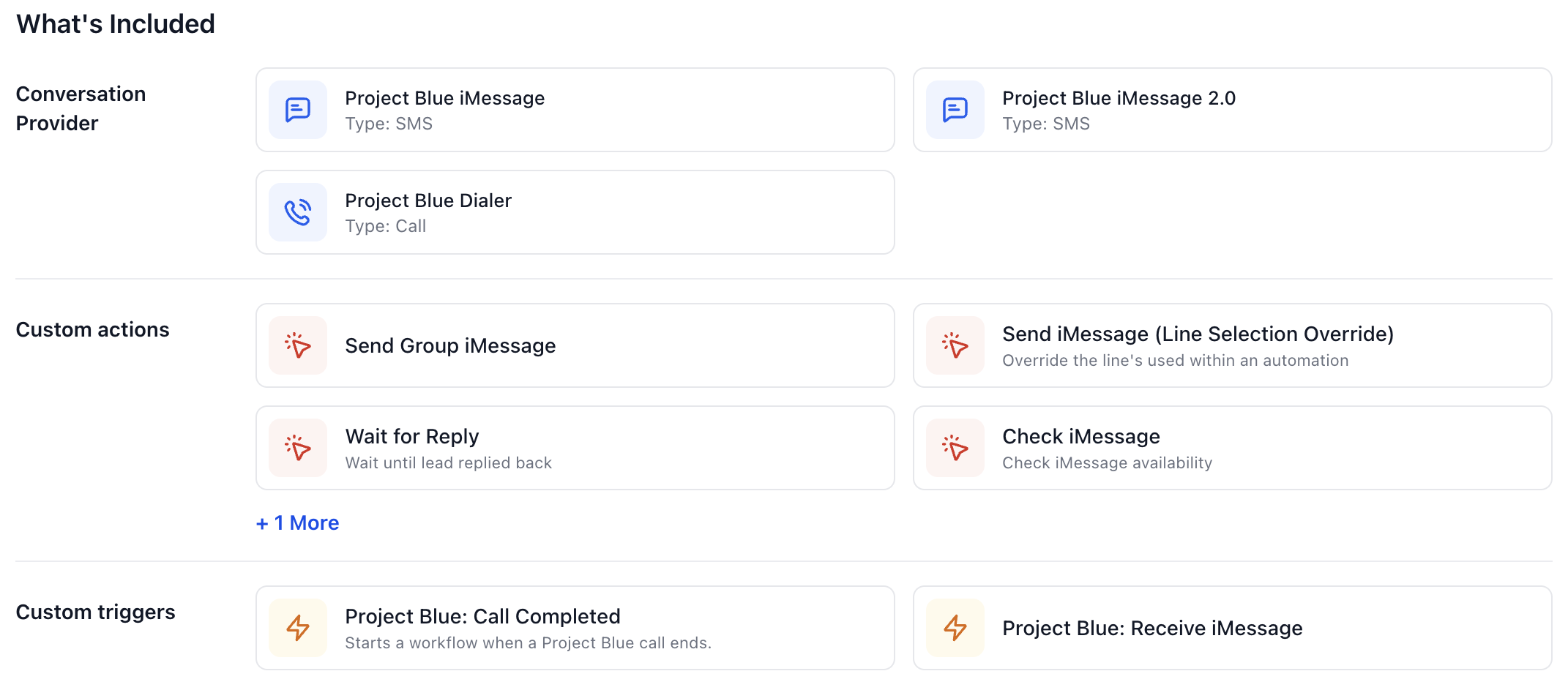
What is it? The Project Blue: Call Completed trigger starts a GoHighLevel workflow automatically when a Project Blue dialer or FaceTime call ends. It passes along the call outcome, so you can react differently to a voicemail, a no-answer, or a booked meeting.
Use cases
Send a follow-up iMessage when an outbound call goes to voicemail or isn't answered.
Create a task or move an opportunity when the outcome is meeting scheduled or callback requested.
Tag contacts marked not interested or wrong number and remove them from a sequence.
Before you start
The call needs to be on a Project Blue line connected to the GoHighLevel account where your workflow lives. If you don't see the trigger in your workflow builder, contact support. If the contact isn't in GoHighLevel yet, Project Blue adds them first.
How to set it up
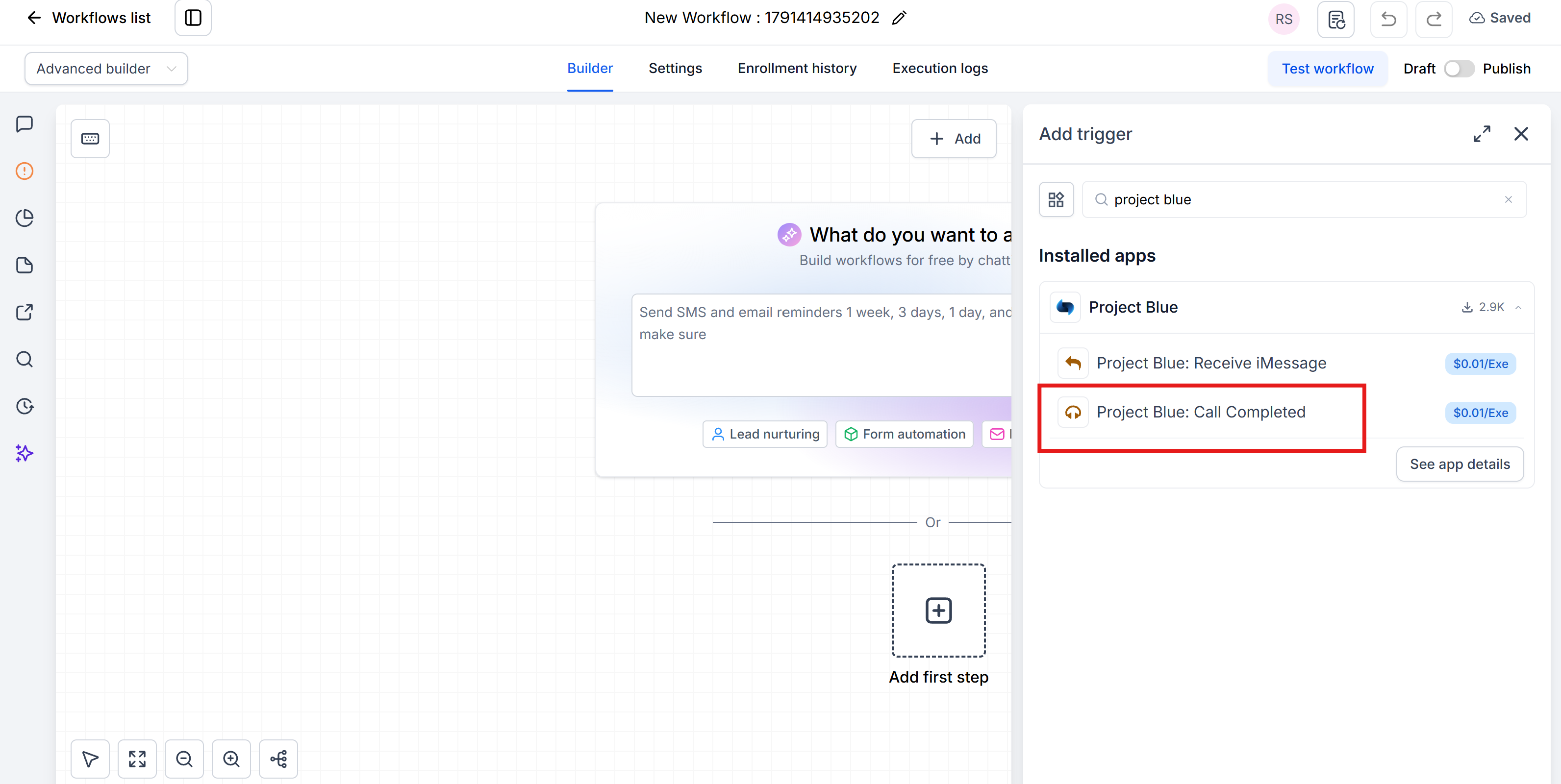
In GHL, go to Automation and create a new workflow. When selecting a trigger, search for "Project Blue: Call Completed".
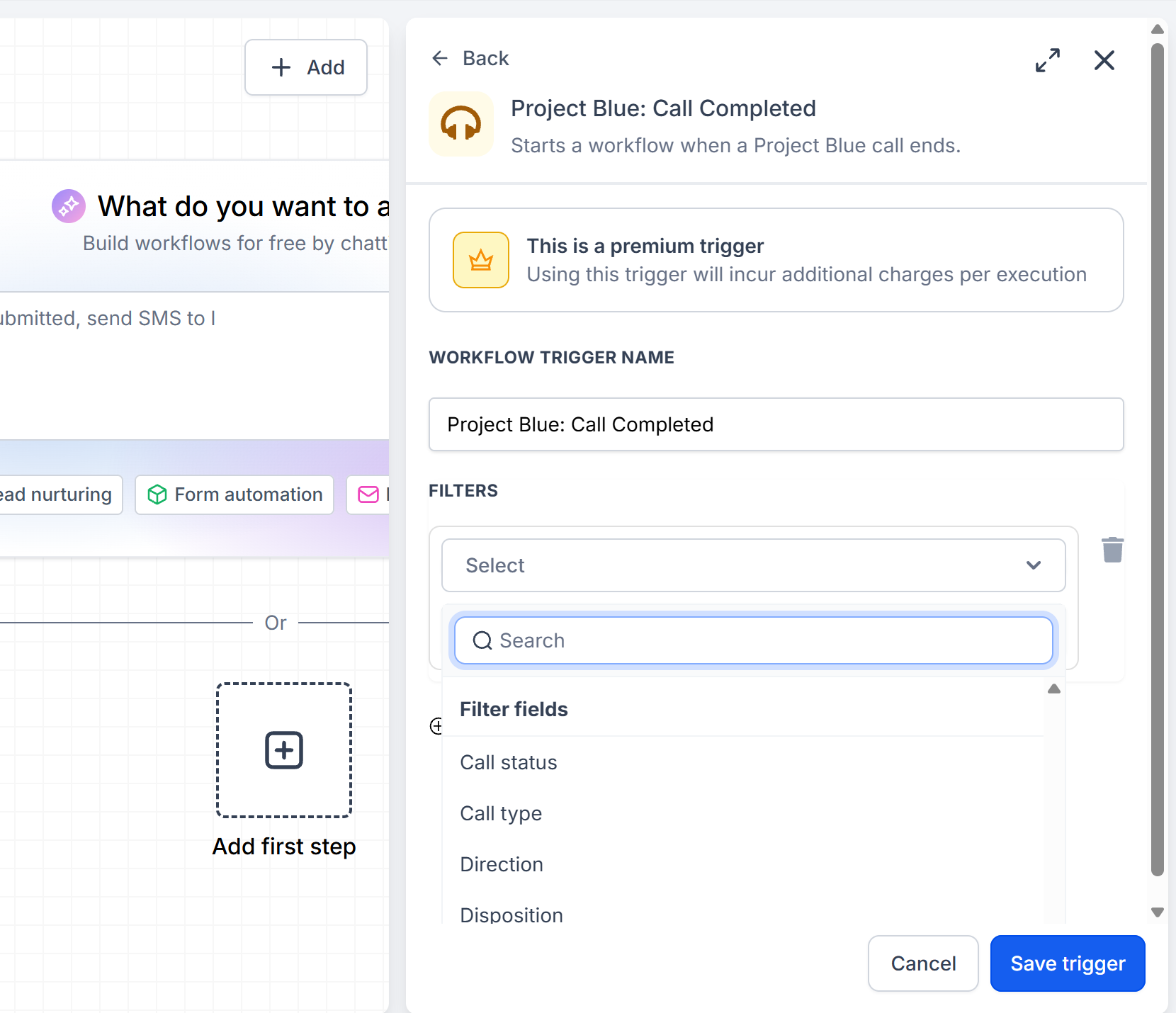
Add filters to choose which calls start the workflow (see below). With no filters, every call listed below starts it.
Add your actions below the trigger: send a message, add a tag, create a task, update an opportunity, or anything else in GHL.
Save and Publish your workflow.
Which calls start the workflow
Outbound calls: answered calls, voicemails, and calls that aren't answered (no answer, busy, failed or canceled). A call that isn't answered starts the workflow with its call status.
Inbound calls that are answered, and inbound voicemails.
FaceTime Audio calls, when they are answered.
The workflow starts once the call's transcript is ready, usually within about 25 seconds for Dialer calls and about 3 to 4 minutes for FaceTime Audio calls.
Filters
Values are sent in lowercase, with underscores in dispositions and a hyphen in no-answer, so type them exactly as shown.
Disposition:
answered,voicemail,busy,no_answer,no_speech,wrong_number,not_interested,callback_requested,meeting_scheduled,information_provided,unknown. Project Blue works out the disposition automatically from the call transcript. For calls that aren't answered, filter on call status instead.Call status:
answered,voicemail,busy,no-answer,completed,failed,canceledDirection: inbound or outbound
Call type: dialer or FaceTime
Line phone number: only calls on a specific Project Blue line
Duration (seconds)
Contact phone
Filters can check whether a value equals, doesn't equal or contains something, or is empty.
Call details you can use in your actions
The trigger passes these values into the workflow, so you can insert them into messages, notes or custom fields:
Disposition, call status, direction, call type, contact phone, line phone number, duration, recording URL, transcript, call SID, start time and end time.
Duration is the length of the recording, and the start time is when the call was answered.
The transcript includes the first 8,000 characters of the call.
The recording URL is a permanent link you can use in messages, notes or custom fields.
Example
Trigger: Project Blue: Call Completed. Filter: Call status is voicemail or no-answer, Direction is outbound.
Action: Send iMessage: "Hey {{contact.first_name}}, just tried giving you a call. When's a good time to connect?"
Using HubSpot or Close? This trigger is for GoHighLevel. HubSpot logs every Project Blue call with its status and outcome, so you can build call-based workflows there. Close logs calls on the matching lead too.
Related: iMessage automation trigger