
Conversation Owners: Assign Conversations on a Shared Line
When several people share one Project Blue line, every conversation can have an owner. The owner is the person responsible for that conversation, so your team can see who is handling what.
How ownership works
Each contact's conversation has one owner, or is Unassigned. There is one owner per phone number on your account, so the owner stays the same whichever line is used.
The first team member to reply claims the conversation automatically. The account owner's own replies don't claim it.
Replies sent from GoHighLevel, HubSpot or Close claim it only if the CRM user's email matches an accepted team member. A +tag in the address is ignored, so name+tag@ matches name@. If the emails don't match, nothing is claimed.
Anyone who can see a conversation can still reply in it. Replying never changes the owner.
Group chats don't have owners.
Conversations that already existed before owners were added start as Unassigned.
Assign or change the owner
Open the conversation.
Click the owner chip. It shows the current owner, or Unassigned.
Web app: top right of the conversation header, next to the AI button.
Mobile app: in the All lines row.
Chrome extension: in a strip under the header.
Pick a team member from the Conversation owner list, or pick Unassigned. Team members show as the part of their email before the @.
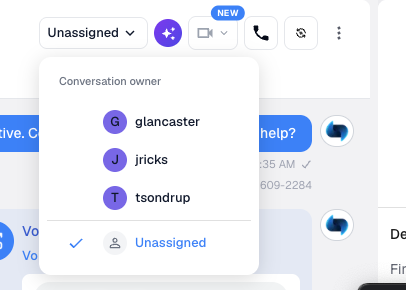
The chip isn't shown on group chats, or on accounts that don't have any accepted team members yet. You can also see and change the owner in the Owner row in the contact details.
Who can change an owner:
The account owner, Admins and agency admins can reassign any conversation.
Users can assign an unassigned conversation to any teammate, on a line assigned to them, and reassign a conversation they own.
Reassigning a conversation doesn't send the new owner a notification, so tell them.
Assign many conversations at once
Admins can bulk assign existing conversations from Line Management > Conversation assignments. Only Admins can open that page.
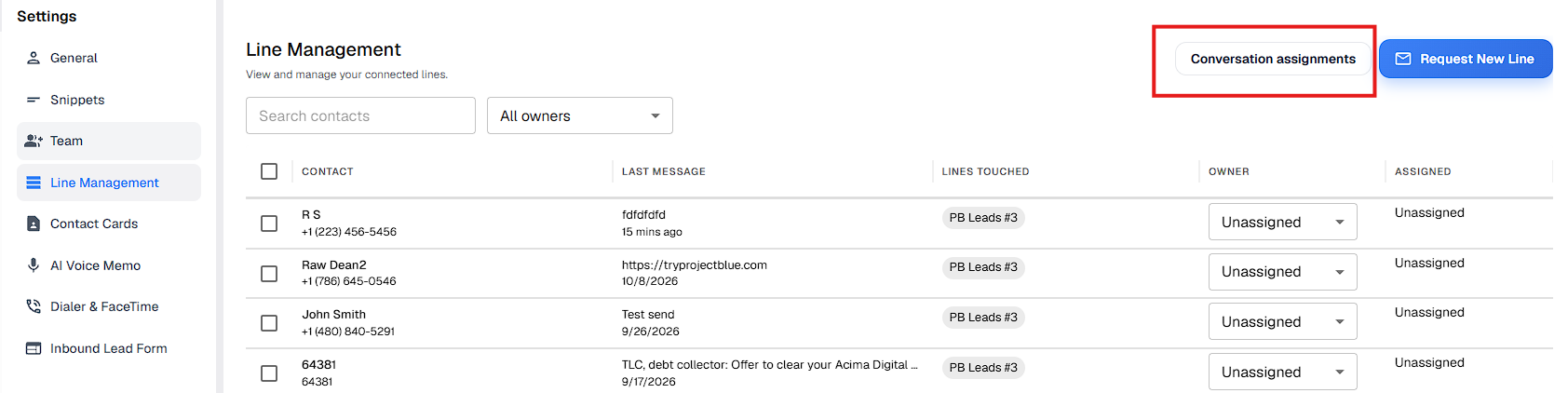
Find your conversations
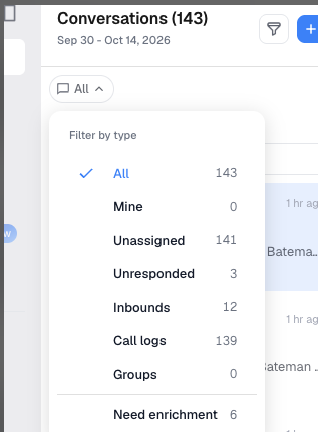
In the conversation type filter, choose:
Mine for the conversations you own.
Unassigned for conversations nobody owns yet.
Mine and Unassigned only show up once at least one conversation has an owner. The filter also shows All, Unresponded, Inbounds, Call logs, Groups and Need enrichment, each with a count, plus Blocked when you have blocked contacts.
To see who sent a message, hover over the time stamp of the sent message. It shows a Sent by line.
Only show a user their own conversations
You can turn on Only own conversations for a user with the User role in Settings > Team. That user then doesn't see other people's conversations in the web app and Chrome extension. They still see the conversations they own and the unassigned ones. If you change the user's role, the setting is cleared.
It's off by default. Without it, a User sees every conversation on the lines assigned to them, so on a shared line they see everything. A User, all lines member sees every line.
Notifications
Once a conversation has an owner, a team member with the User role only gets push notifications and alerts for it if they're the owner. This applies in the mobile app, the Chrome extension and the web app.
Owner alerts only work for a line the owner is assigned to, directly or through a group. Being the owner doesn't add alerts for a line you don't have.
The account owner, Admins and User, all lines members aren't filtered by owner. They get push notifications for the lines assigned to them (or their group), unless their alerts are set to all conversations.
Unassigned conversations and group chats notify exactly as before. Nothing changes for accounts that never assign owners.