Using the Conversations Inbox in the Project Blue App
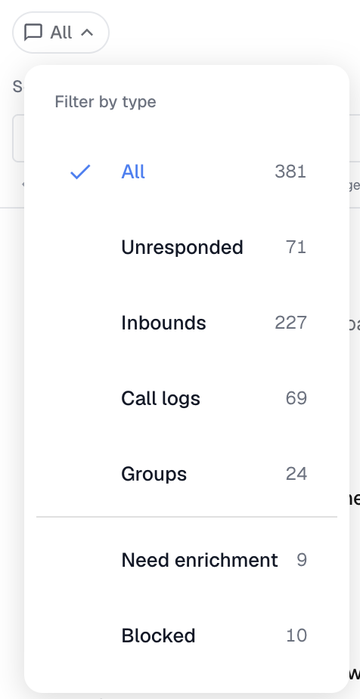
The Conversations inbox in the Project Blue web app and mobile app shows every conversation across your lines. Use the two chips at the top of the list to narrow it down.
Filter by line
Click All lines and choose a line to see only that line's conversations. The chip turns blue while a line is selected.
Filter by type
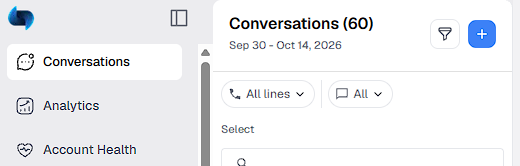
Click the chip next to All lines (it shows All by default). A Filter by type menu opens with every filter and the number of conversations in each:
All: every conversation.
Unresponded: the contact's newest message is more recent than the newest message you sent. Attachment-only messages and calls are ignored. Clicking Mark read clears it until the contact sends a new message.
Inbounds: contacts who sent at least one message in the date range you selected, whether or not you've answered.
Call logs: Dialer and FaceTime calls, inbound and outbound.
Groups: group chats.
Need enrichment: conversations with no CRM contact linked yet (GoHighLevel, HubSpot or Close).
Blocked: numbers on your account's blocked list, whether your team blocked them or they opted out (by keyword, by texting STOP, or through GoHighLevel Do Not Disturb). Blocked contacts only show under Blocked, never under the other filters. See Blocked contacts below.
Need enrichment and Blocked only appear in the list when they have conversations in them.
A check mark shows the filter you're viewing. The chip shows its name (for example, "Unresponded") and turns blue whenever anything other than All is selected.
The counts match what you'll see
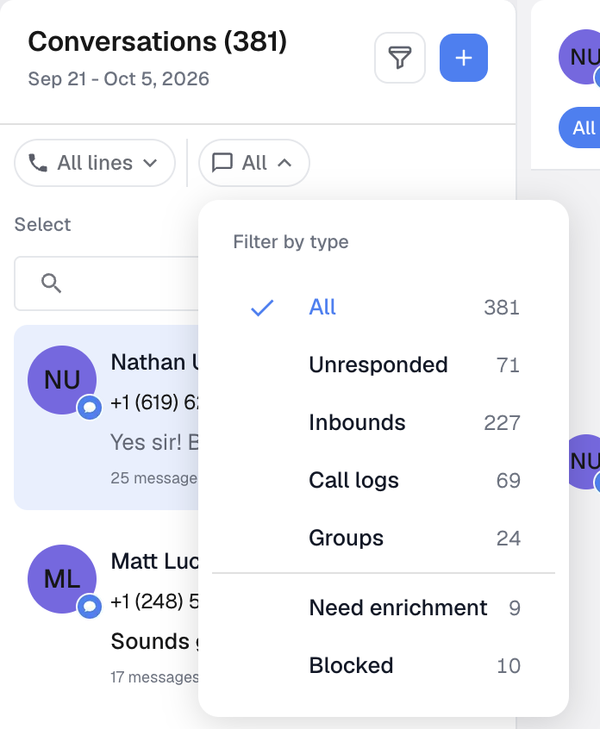
The number next to each filter takes into account your line selection, your search, the user and line choices under the funnel icon, and the date range (the last 14 days by default). If it says "Unresponded 71," you'll see 71 conversations when you pick it.
The Need enrichment count ignores your search and the funnel filters.
Unresponded and Inbounds look at all of a contact's lines together, so choosing one line doesn't recalculate them for that line alone.
Blocked contacts
A contact ends up under Blocked in any of these ways. Whichever happens first keeps its label.
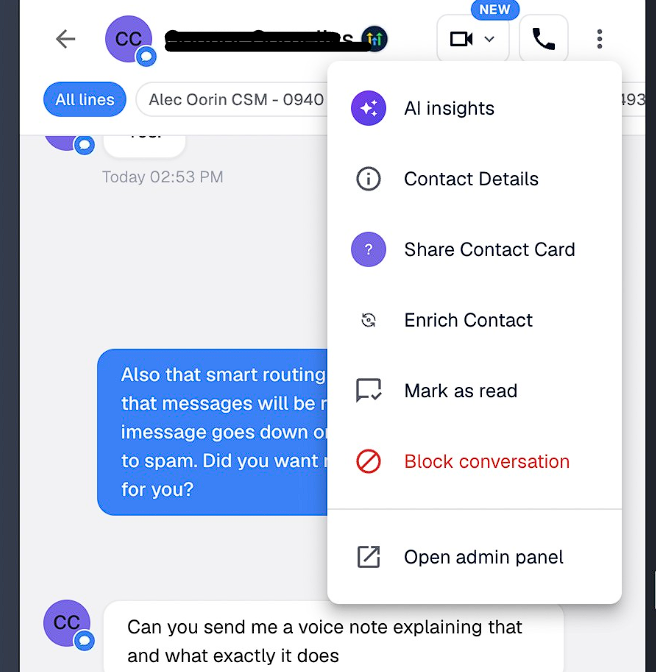
Someone on your team blocked them.
They texted one of your account's opt-out keywords. This works on iMessage lines too, and only if you've added keywords in Settings; none are on by default.
They texted STOP to a Twilio SMS line. The whole message has to be STOP, STOPALL, UNSUBSCRIBE, CANCEL, END or QUIT.
They're marked Do Not Disturb in GoHighLevel, which syncs to Project Blue automatically. New Do Not Disturb contacts are blocked within about an hour.
What a block does
Replies still come in, but only show under Blocked. They don't appear in your main inbox, don't send push notifications, and don't sync to your CRM, trigger workflows or send Slack alerts. The one exception is the STOP message itself, which does sync and notify.
Automations stop: Project Blue workflows won't text them, and GoHighLevel "Send iMessage" actions skip them.
Manual texts on GoHighLevel accounts to a number that is a GoHighLevel contact are refused with a "destination blocked" error.
How to unblock
Only a block by your team can be undone in the app. The other three show "can't be unblocked here."
Blocked by your team: open the conversation and click Unblock on the yellow banner at the top.
GoHighLevel Do Not Disturb: turn Do Not Disturb off for the contact in GoHighLevel. Project Blue picks up the change automatically.
Texted STOP on a Twilio line: the contact texts START or UNSTOP. This only clears a STOP on a Twilio SMS line. It doesn't clear a team, keyword or Do Not Disturb block, and it doesn't apply to iMessage lines.
Opt-out keyword: there's no Unblock button, because the contact asked to stop. Contact Project Blue support if you need help.
Search and more filters
Use the search box to find a contact by name or number, and the funnel icon for date and other filters.
On mobile
The mobile app shows the same inbox, so the chip and its options are the same: tap All at the top of Conversations. If you have two or more lines, the line selector moves into the top menu on narrow screens.