
Project Blue Workflows: Wait for Reply, Personalization and Opt-Out Keywords
Project Blue workflows send a series of messages to a contact automatically, and can wait for the contact to reply before deciding what to do next. They work for GoHighLevel, HubSpot, Close and API accounts, including Close and API-only accounts that don't have a "wait for reply" option in their CRM.
Only the account owner or an admin can create or enroll workflows. Workflows isn't available on trial accounts, or to agency members with limited access.
Create a workflow
In the Project Blue web app, click Workflows in the left menu.
Click New Workflow and name it.
Add your steps (see below).
Click Save.
Switch the workflow from Draft to Published. Contacts can only be enrolled in a published workflow.
Steps you can use
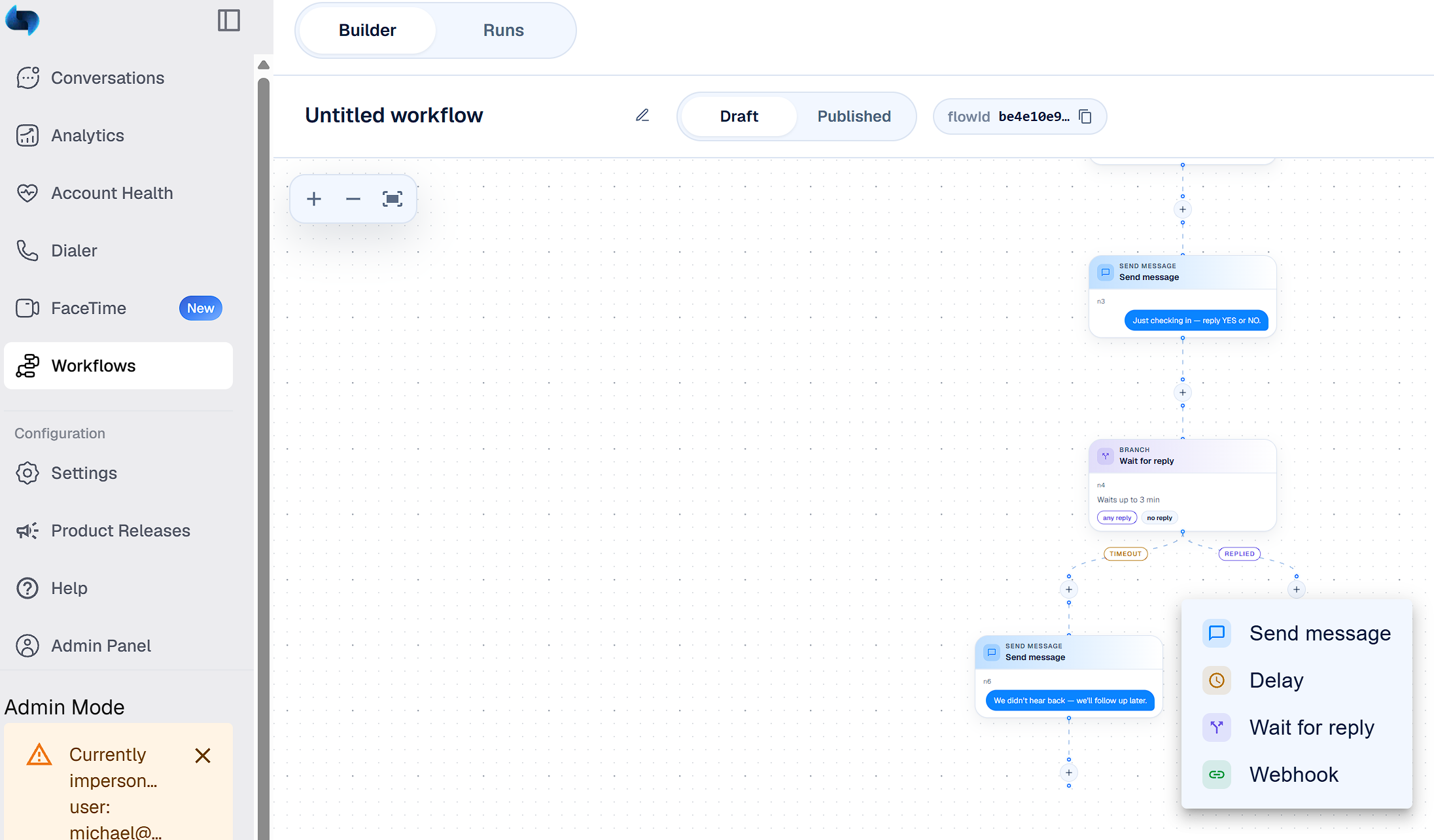
Send message: sends a text or iMessage to the contact. Workflow messages are text only.
Delay: waits before moving to the next step.
Wait for reply: pauses the workflow until the contact replies. When the contact replies, the workflow stops sending the follow-ups.
Add contacts to a workflow
By hand: open the published workflow and click Enroll contact. The button only shows when the workflow is published and has no unsaved changes. Enter the contact's phone number, choose the Line, and click Enroll.
Through the API: send an enroll request to
POST https://api.tryprojectblue.com/enroll-flowwith your API key. It only works on a published workflow. See the API docs.
Trial accounts can't enroll contacts, and contacts who have opted out can't be enrolled.
Personalize messages
In any Send message step, click Insert field to add details about the contact. You can choose First name, Last name, Email, Company, Phone, Last reply, or a Custom field.
Where the details come from: for GoHighLevel, HubSpot and Close accounts, Project Blue reads them from the contact in your CRM at the moment each message sends. If someone updates the contact between steps, later messages use the new details. For API accounts without a CRM, they come from the Project Blue contact.
Add a fallback in case a field is empty by typing it in by hand, because there's no fallback button. For example,
Hi {{first_name|there}}sends "Hi there" when the contact has no first name. Without a fallback, an empty field is left blank.Custom fields: use
{{custom.key}}. In GoHighLevel, use the custom field's key (the merge tag without "contact.", so{{contact.lead_source}}becomes{{custom.lead_source}}) or its name. In HubSpot, use the property's internal name. In Close, use the custom field name.Last reply is the contact's most recent text during a Wait for reply step. It's empty before that step.
If you mistype a field or the field is empty, the message sends with that part blank (or your fallback), never the literal text. When you click Save on a workflow that's already published, you'll see a warning about a mistyped field. The warning doesn't stop you from saving.
Opt-out keywords
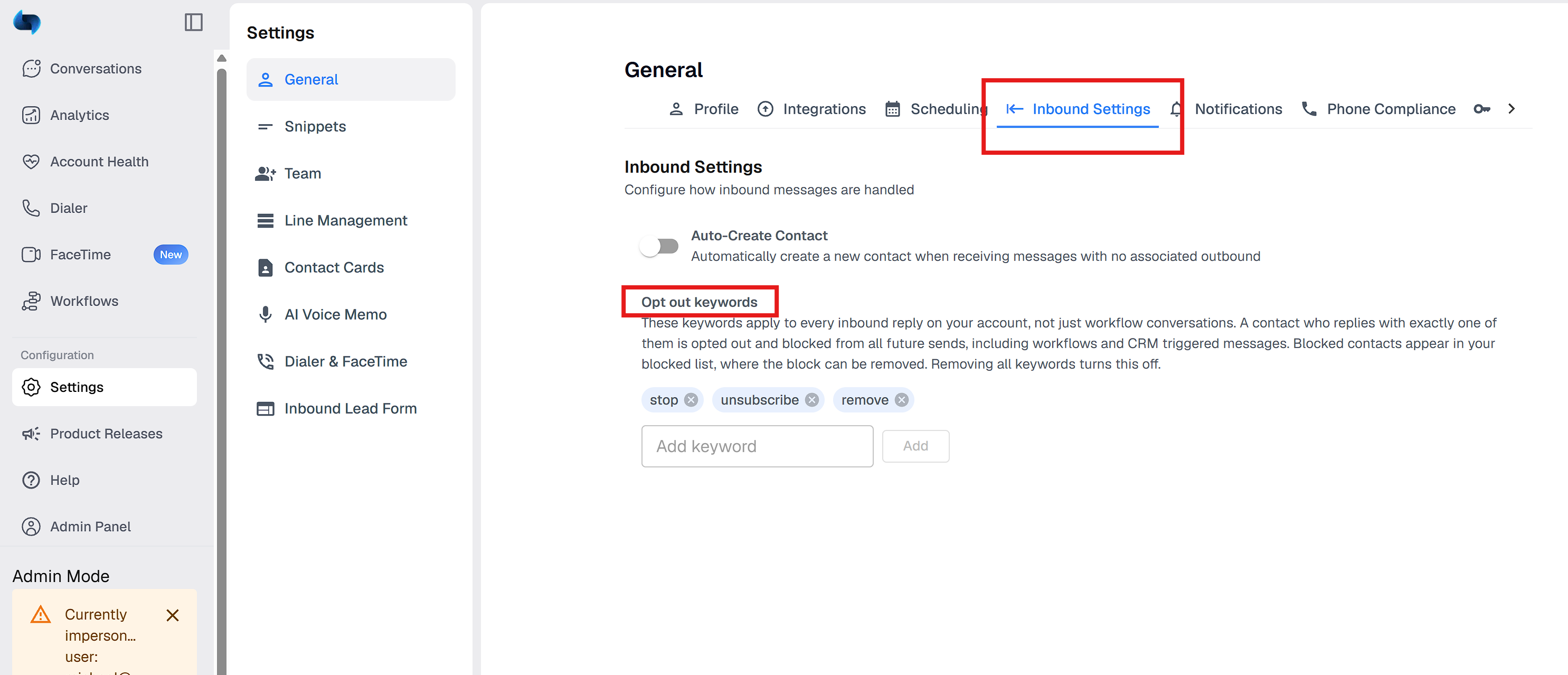
Opt-out keywords let contacts stop your messages by replying with a word like STOP. They're off until you add them.
Go to Settings > Inbound Settings > Opt out keywords.
Add your keywords, or click Add recommended keywords to add stop, unsubscribe and remove.
Save.
When a contact replies with one of your keywords, Project Blue blocks them from future messages, stops any workflows they're in, and moves them under Blocked in your inbox.
Only exact replies count. The whole message has to be the keyword (capital letters and ending punctuation like . ! ? , ; : don't matter). "STOP", "stop." and "Stop!" are caught. "Please stop texting me" is not, so your team still needs to handle requests like that by hand.
You can add up to 10 keywords, each 2 to 30 characters.
Keywords don't apply in group chats.
A keyword opt-out can't be undone from the inbox, because the contact asked to stop. Only blocks added by your team can be unblocked in the app. Contact Project Blue support if you need help.
Opt-outs stay in Project Blue and don't update HubSpot, so if you also message contacts from HubSpot, handle opt-outs there too.