
Setup Automations
To get started with Zapier Close Automations, you'll first need to generate an API key in Project Blue under Settings > General > API Keys. See API Keys.
Copy the key when it appears. It's shown once. Account owners and admins can create keys.
Getting started:
Once you've obtained your API key, you'll need to be invited to the Project Blue Zapier app by reaching out to our support team.
Setting a trigger
Close natively has tons of triggers to choose from based on the automation flow / sequence you're trying to do. For example, you can create new triggers based on "New Lead" or a "New Lead in Smart View" if you want to get more granular.
You'll need to authenticate with Close by logging into your account if you haven't already.
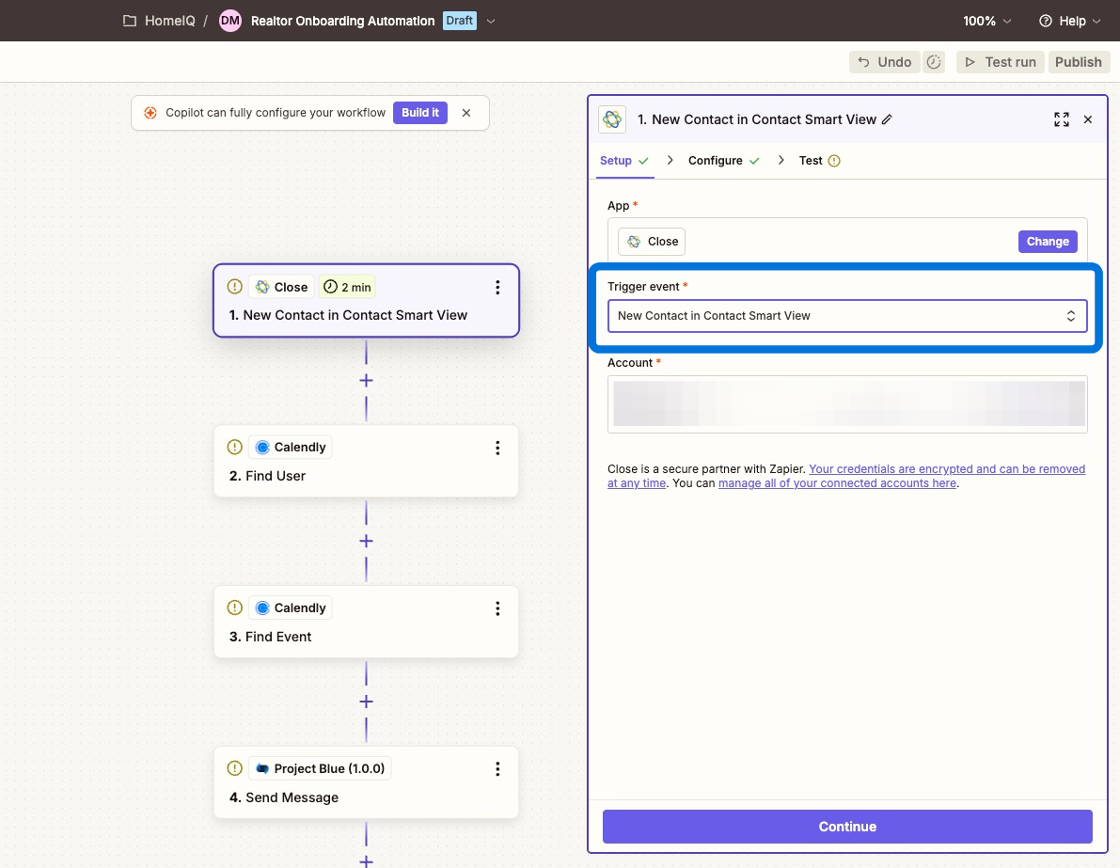
In the example below, we've set a trigger based on when a new contact is added to a smart view. There are lots of configurations you can setup!
Create Project Blue Workflow Action
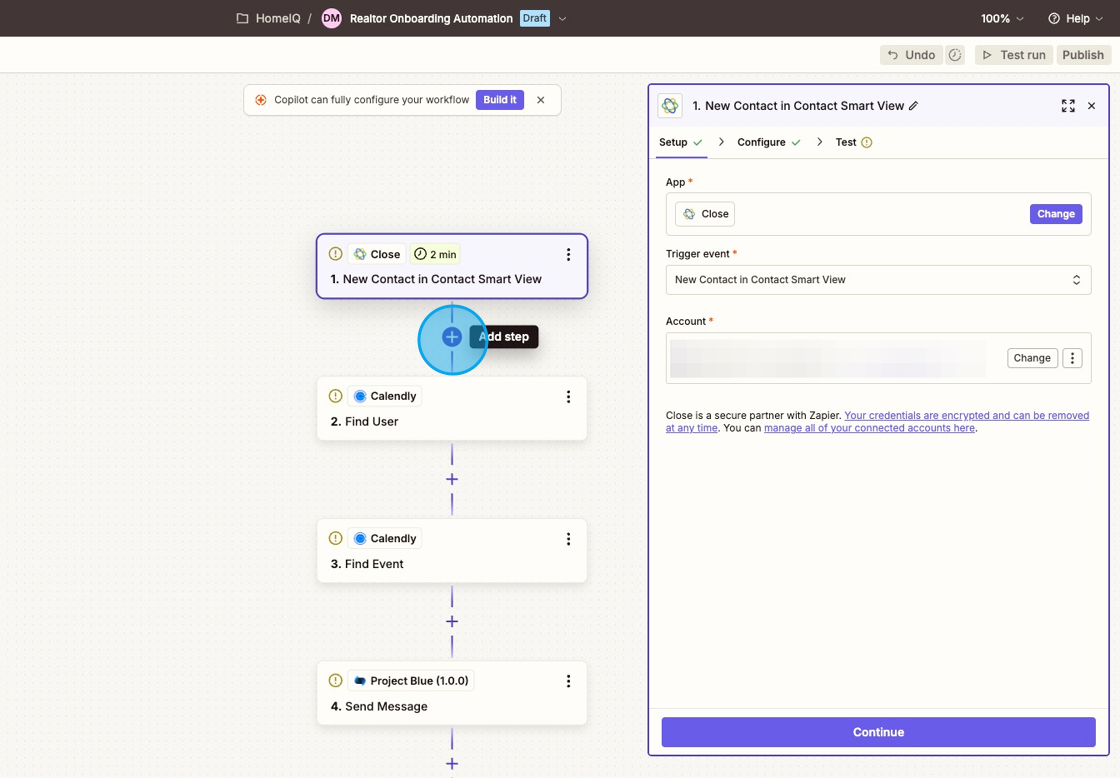
1. Click "Add Step" button
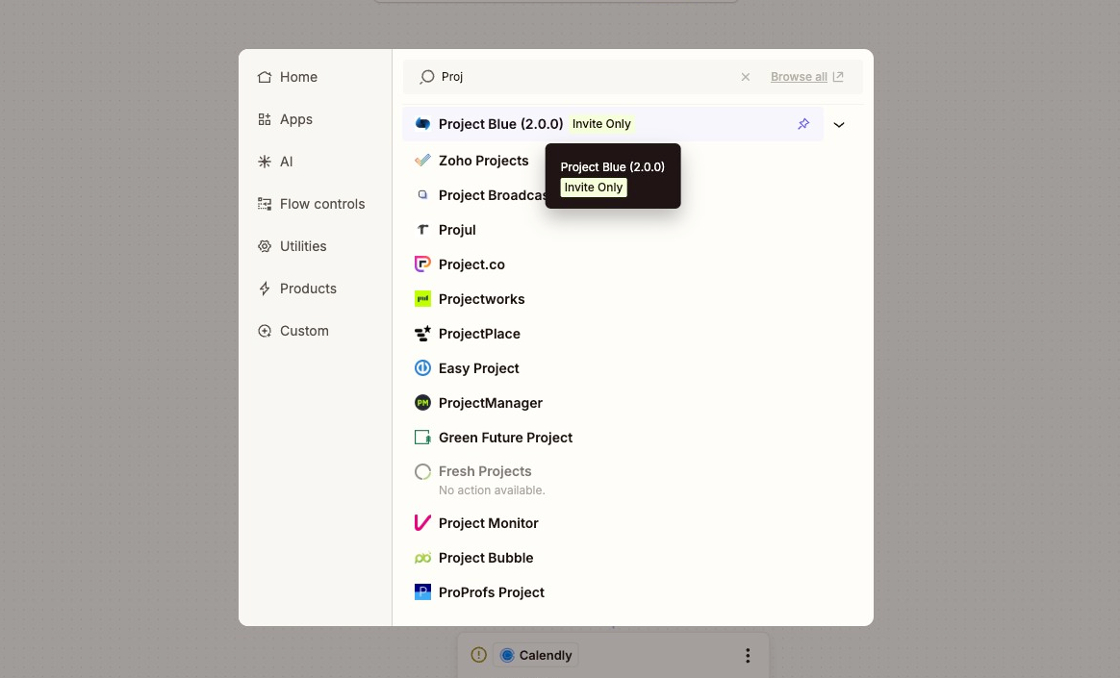
2. Type "Project Blue" in the action finder and select it
As a reminder, if you don't see this listed as an option, that means you'll still need to be invited to join the Zapier app.
Contact our support to get access.
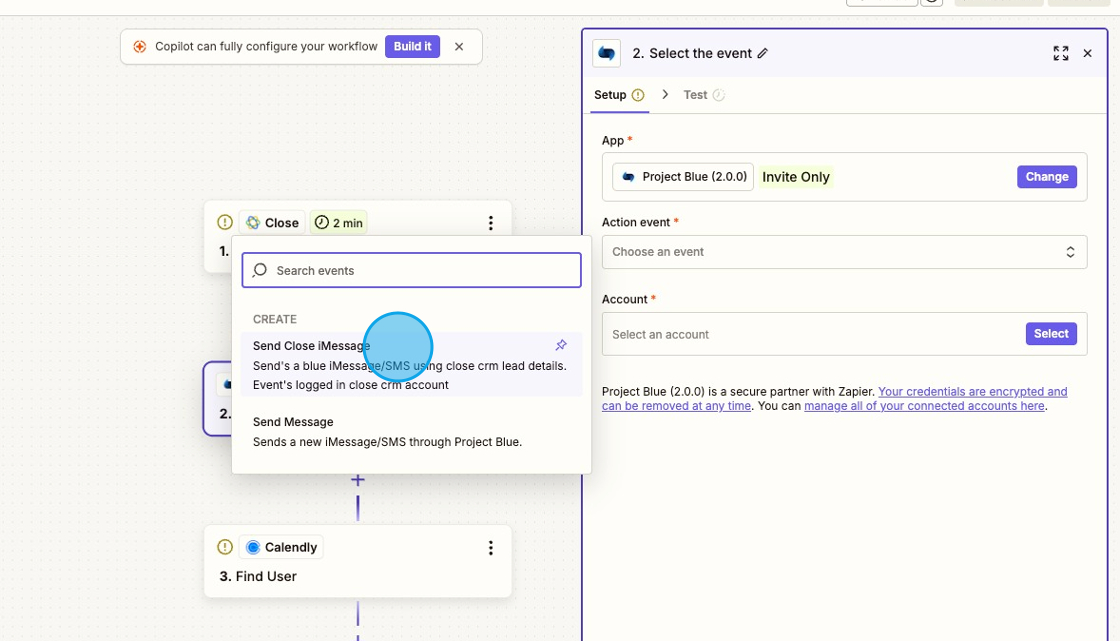
3. Set "Send Close iMessage" as the Action Event
As a reminder, please be careful and select the correct event when connecting with Close otherwise the messages will not be synced with Close's system
4. Click "Account" then "Connect new account" to connect Zapier to Project Blue

5. Enter in the Project Blue API key from the previous steps above
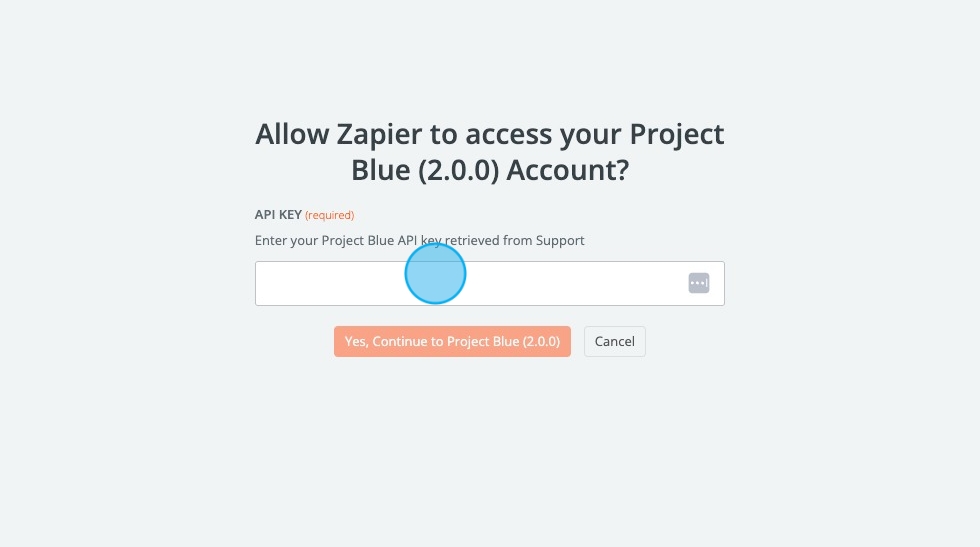
And that's it, you're ready to start configuring your messaging once you've made the connections
Configure Messaging
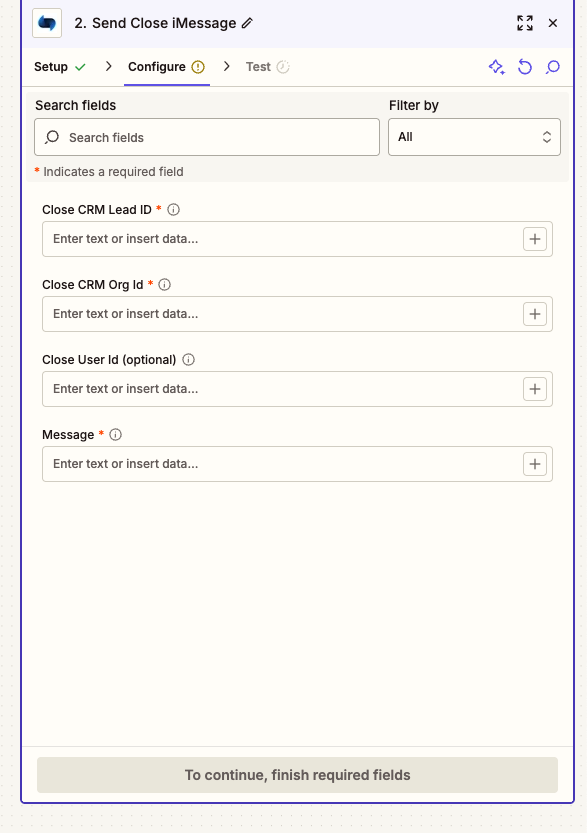
To get started messaging, the 2 fields you'll need to pass in from the previous steps are the Close CRM Org Id and the Close CRM Lead ID so our system knows the Close account and contact / lead our system is messaging with.
Once these values are set, you can configure the "Message" by entering in the text you'd like to send with the use of Dynamic values as well using Zapier's workflow.
Good to know
The lead needs to already exist in Close and have a phone number. Project Blue sends to the first phone number on the lead's first contact.
Your Close account needs an active subscription and at least one line.
Each message you send appears in Close as an SMS activity on the lead.
Keep each message unique. If your account has already sent the exact same text to the same number, the repeat isn't sent, and Zapier still shows success. Add something that changes each time, such as the date or a reference number.